
Home / Blog / AI Automation/ How to plan 10 days of content in 5 minutes using Claude and Notion
How to Plan 10 days of Content in 5 minutes Using Claude + Notion
By Traci Gurney | Last updated: May 2026 | 7 min read
THE SHORT ANSWER
You can plan 10 days of content in about five minutes by connecting Claude to Notion through Claude's built-in connectors, then talking Claude through creating a content calendar, researching topics, and filling in dates, all without touching Notion yourself. No code, no automation tools, just a free Claude account and a free Notion account.
KEY TAKEAWAYS
- Claude can write directly to Notion. Once connected, Claude creates databases, adds columns, updates rows, and changes cell values inside Notion, you never have to open Notion to make edits.
- Research and content planning happen in the same conversation. Claude gathers trending topics, explains why each one resonates with your audience, and maps that reasoning into a research column in your calendar.
- Claude flags better options you didn't ask about. In the demo, Claude noticed Facebook was a stronger platform fit than LinkedIn and suggested the switch unprompted.
- Platform-specific versions prevent copy-paste content. One topic can generate separate, distinct versions for Instagram, Facebook, and email, each formatted and toned differently.
- The workflow works for any small business. The demo uses a local bakery, but the same steps apply to any business that creates regular social posts, emails, or video content.
Watch & Read · Your Call!
This comes straight from my YouTube video. Same breakdown, just written out so you can follow it at your own pace. Pick whichever way you learn best.
Prefer to watch instead? I walk through the whole thing on my channel.
Step-By-Step: Plan a Content Calendar with Claude and Notion
Step 1: Connect Claude to Notion
In Claude, go to Customize, then Connectors (or Connect your app). Search for Notion and click Connect. A browser window will open asking you to grant access, enter your Notion email and password, or sign up for a free account if you don't have one. Review the permissions Claude will have, then click Open. Notion will appear as an active connector.
Step 2: Create the Content Calendar Database
Tell Claude to create a Notion database called Content Calendar with the columns you need. For this workflow, the columns are: Date, Platform, Topic, Hook, and Status. Claude will ask for your confirmation based on the permissions you set, then build the database inside Notion automatically. If Claude doesn't show you the direct link, just ask "where is my Notion calendar?" and it will provide one.
Step 3: Research Topics Before Planning Content
Before generating post ideas, ask Claude to research what's currently happening in your local area or industry and surface topics that would work for your specific business. Claude returns topics along with a rationale for each, why it resonates, which platform fits best, and a suggested hook. Doing research before content planning gives you ideas grounded in what's actually working.
Step 4: Let Claude Map Content to the Right Platforms
After Claude presents its topic list, review the platform suggestions. If Claude recommends a different platform than you originally specified, as it did in the demo, suggesting Facebook over LinkedIn for the bakery, you can accept that and ask Claude to update all the entries in Notion accordingly. Claude will rewrite the platform column across every row.
Step 5: Add a Research Column to Preserve Context
The research Claude did won't automatically save to your calendar. Ask Claude to add a Research column to the database and fill it in with the context behind each topic: why it's trending, key points to mention, and what makes it work for your audience. This turns your calendar into a reference document, not just a list of titles.

Step 6: Generate Platform-Specific Content Variations
Pick one topic from the calendar and ask Claude to produce separate versions for each platform, for example, Instagram, Facebook, and email. Each version should be written differently, not just reformatted. If Claude outputs them as separate rows and you'd prefer a different layout, tell it to fix that in Notion.
Step 7: Add a Calendar View and Assign Dates
Ask Claude to create a calendar view inside your Notion database. Once it exists, tell Claude to fill in the dates across all 10 topics. Claude will assign dates in Notion and your calendar view will populate. You now have 10 days of content planned with dates, platforms, hooks, and research, without manually entering anything.
Make sure to setup Claude properly from the start.
Concrete Examples
Example 1: Building the Bakery Content Calendar
I asked Claude to create a Notion database called Content Calendar with five columns: Date, Platform, Topic, Hook, and Status. Claude built the entire database inside Notion without me opening the app. This took a single prompt.
Example 2: Claude Suggesting Facebook over LinkedIn
When Claude returned 10 topic ideas mapped to LinkedIn, it noted that it hadn't seen Facebook listed as a platform, and that Facebook was a better fit for a local bakery's audience. I asked Claude to add Facebook as a platform option and remap the topics. Claude updated every affected row in Notion.
Example 3: Three Versions of One Topic
I selected one topic from the calendar and asked for platform-specific versions. Claude produced three distinct pieces of content, one for Instagram, one for Facebook, and one for an email list, each written differently for the format and audience, not just copy-pasted with minor edits.
Example 4: The Research Column
After noticing the research Claude had done during planning wasn't saved anywhere, I asked Claude to add a Research column and fill it in retroactively. Claude populated each row with the reasoning behind that topic: what's trending, why it works for a bakery audience, and what key points to hit.
Example 5: Calendar View with Dates Assigned
After the 10 topics were in the database, I asked Claude to create a calendar view in Notion and then fill in the dates. Claude added the view and assigned a date to each row, producing a finished, visual content calendar, still without me manually entering anything in Notion.
SOURCES
Claude
I used Claude to connect with Notion and help create the content shown in this tutorial.
Claude AI Support
Notion
Notion is used as the workspace where the content was created and organized.
Notion Support
YouTube Walkthrough
Claude + Notion
Frequently Asked Questions
Do I need a paid Claude account to do this?
No. The workflow in this video uses a free Claude account and a free Notion account. The Notion connector is available without a subscription.
How do I connect Claude to Notion?
Go to Customize in Claude, click Connectors, search for Notion, and click Connect. A browser pop-up will ask you to log in to Notion and grant access. Once you approve, Notion appears as an active connector and Claude can read and write to your databases.
Will Claude automatically save the research it does into my Notion calendar?
Not unless you ask it to. Claude performs the research in the conversation, but you need to explicitly prompt it to add a Research column and fill it in. Once you do, all that context is stored in the database.
Can Claude update Notion without me opening the app?
Yes. After the connection is set up, Claude can create databases, add and edit columns, update cell values, and change platform assignments entirely on its own. You direct it through conversation and it makes the changes.
What columns should I include in a content calendar database?
The demo uses Date, Platform, Topic, Hook, and Status as the core columns, with Research added as a follow-up. You can ask Claude to add or change columns at any point in the conversation.
What if I want different content for Instagram versus email?
Pick any topic and ask Claude to write platform-specific versions. Claude will produce separate, distinctly written pieces for each platform, not the same text reformatted. If you want each version stored as its own row in Notion, Claude can do that too.
What if Claude maps topics to the wrong platform?
Tell Claude which platform you want and ask it to update the entries. If Claude suggests a different platform (as it did with Facebook in the demo), you can either accept the suggestion or override it, either way, Claude will update the Notion rows.
Is this useful for businesses other than bakeries?
Yes. The workflow works for any small business that creates recurring content, social posts, email newsletters, video topics. The demo uses a bakery for illustration, but the same prompts and structure apply to any niche.
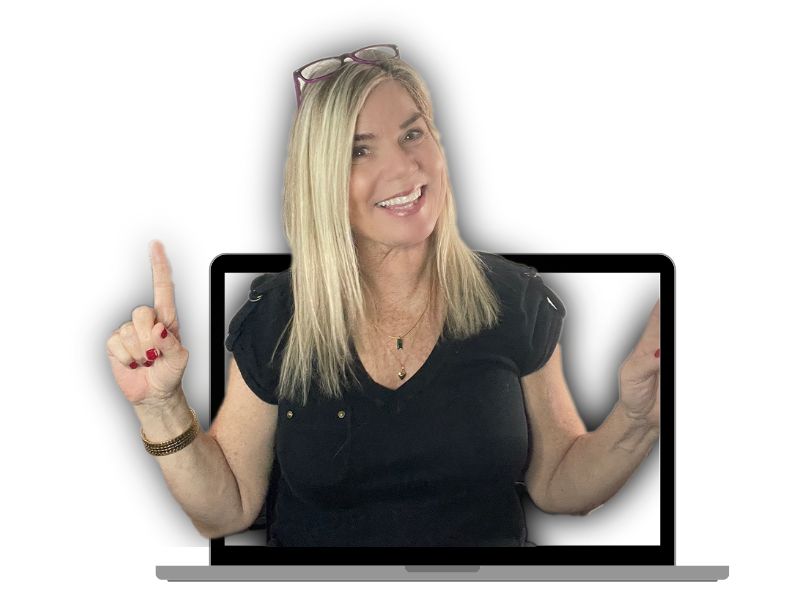
Hey, I'm Traci
Digital Marketing Strategist · YouTube Educator
With over 25 + years in this industry I'm able to help small business owners and creators transform their online presence into profits. Less hustle, more strategy, that's the goal. New tutorials drop here every other Tuesday.
Keep Going .....
How to Organize Your Business With AI
Sales in one app, appointments in another, content buried somewhere else. Here’s how to build one live dashboard in Claude Cowork that pulls all three together and refreshes every morning, including the step most people skip.
How to Know What to Post on Social Media
Google has been tracking how your YouTube videos, Instagram posts and TikToks perform in search, and Search Console now shows you that data for free. Here’s how to connect it and what to change once you can see it.
How to Write Product Descriptions With AI
Export four fields, hand Claude your brand positioning along with them, and ask for descriptions that lead with the problem the product solves. Here’s the process on a real WooCommerce store, including the review step before import.
Turn your content into a system that grows your business