
Make Reels With Claude
A free course for small business owners. Sixteen short lessons, from a blank folder to branded reels, whether you film or not. Every prompt, what each line is doing, and what Claude said back.
You don't need to be an expert in marketing or AI. You need to know your business, because you tell Claude what you want in plain English and it makes the video. You can make a reel without filming anything, or hand it a video you filmed on your phone.
All sixteen lessons open right here
Every prompt I typed, what each line is doing, and what Claude said back. They appear on this page the moment you sign up.
Three things, and one of them costs money
- 01
A computer
This all happens on your computer, not your phone. Your phone comes in at the end, when you post.
- 02
The Claude desktop app
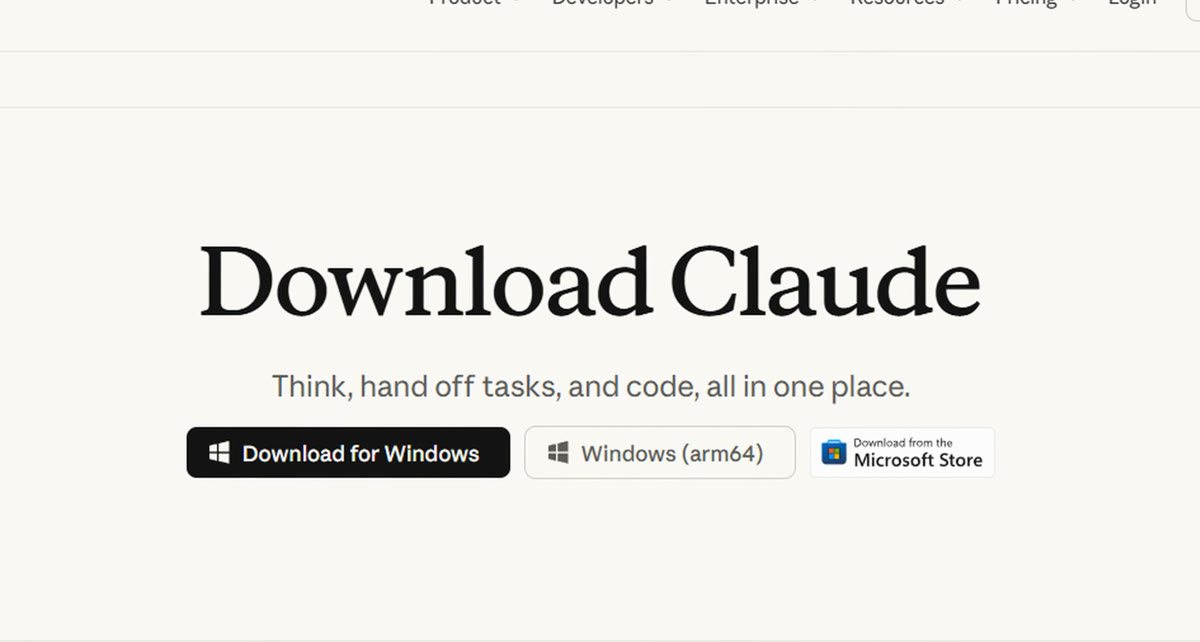
If you don't have it yet, download it from claude.com first.
- 03
A paid Claude plan
Claude Code comes with a paid Claude plan. Every plan has a usage limit, and making videos uses more of it than a quick chat. The video tool Claude installs is free.
What Claude says to you won't match what it said to me
Every lesson shows you what Claude said back. Yours will be worded differently, because it writes a fresh answer every time. Look for the same things, not the same words. Some replies are from my own chats. Others are from tests with two made-up businesses, a bakery and a flower shop, so you can see it work for a business that isn't mine.
Watch me make one
My full walkthrough from YouTube, about 11 minutes. The lessons go further than the video.
Set up Claude Code
Claude Code is the part of the Claude app that works on your computer. It can read your files, make new ones, change them and run programs. That's how it makes a video. You keep it in one folder, and it asks before it acts.
Claude Code sounds like it's for programmers. You don't have to write any code to use it. You type what you want, the same way you do in a normal Claude chat.
What it can do, said plainly
A normal Claude chat only talks to you. Claude Code does things on your computer. I want you to know that before you start.
- 1
It can read files
Your logo, your photos, your phone videos, anything in the folder you give it.
- 2
It can make, change and delete files
That's how you end up with a brand file and a finished video.
- 3
It can run programs
The video tool is a program. Claude runs it for you.
Don't let that scare you. It's the reason this works. And three things keep you in charge.
- 1
You give it one folder
Make a new folder only for this. Don't point it at your whole Documents folder. Everything in this course happens inside that one folder.
- 2
It asks before it acts
Under the message box there's a setting for how much Claude checks with you. While you're learning, keep it on the one that asks you each time. When it asks, read what it wants to do and say yes or no.
- 3
You tell it the rule
There's a prompt for that further down this lesson. It takes one minute.
Open it up
- 1
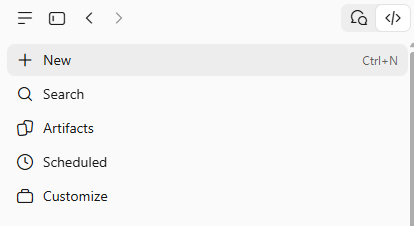
Open the Claude desktop app and click the Code tab at the top
It's the button with this symbol, </>, at the top right.
- 2
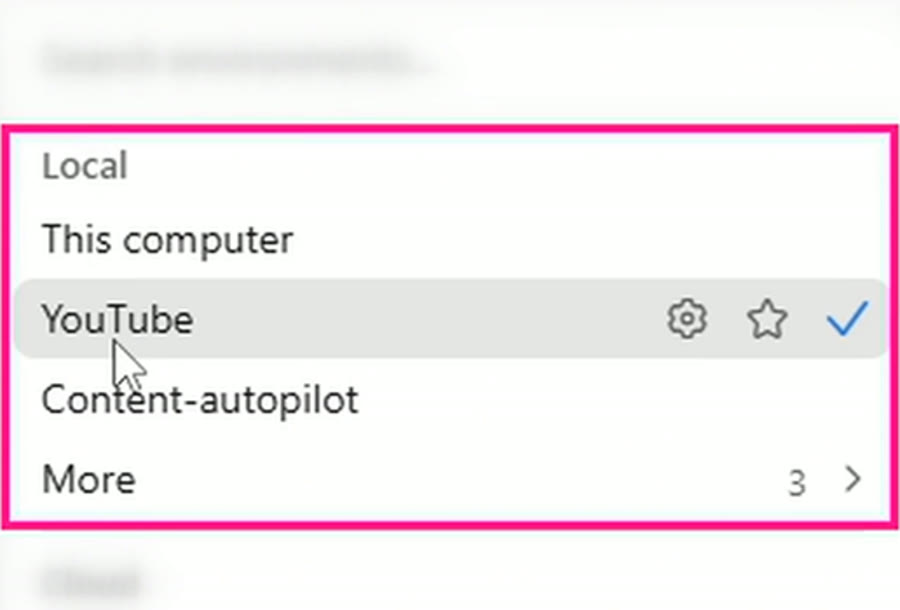
Choose Local
So it works on your computer, where your files are.
- 3
Pick your folder
The new one you made for this. Everything Claude makes goes in here.
The app changes. What you see on your screen may look slightly different from mine, because the Claude app gets updated often. A button might move or get a new name. The ideas are the same: a Code tab, a choice to work on your computer, a folder, and a setting for how much it asks you.
Then paste this in and send it.
I run a small business and I want to make short branded videos and Instagram Reels in this folder. I don't code and I don't have an editing app. Set up whatever you need to make videos here. Before you install anything, tell me in plain English what it is and why you need it. Tell me when you're ready.
What each line is doing
- I run a small business and I want to make short branded videos and Instagram Reels in this folder.
- This tells Claude what you're here to make and where to put it. Everything it sets up goes in the folder you picked.
- I don't code and I don't have an editing app.
- This is why it talks to you in plain English, and why it sets up a tool that does the editing app's job for you.
- Set up whatever you need to make videos here.
- You're not picking the tools. Claude checks what your computer already has and works out what's missing.
- Before you install anything, tell me in plain English what it is and why you need it.
- Nothing goes on your computer until you've read what it is and said yes. It's like a contractor asking before they knock out a wall.
- Tell me when you're ready.
- It finishes the setup and stops. It doesn't guess what video you want and start making one.
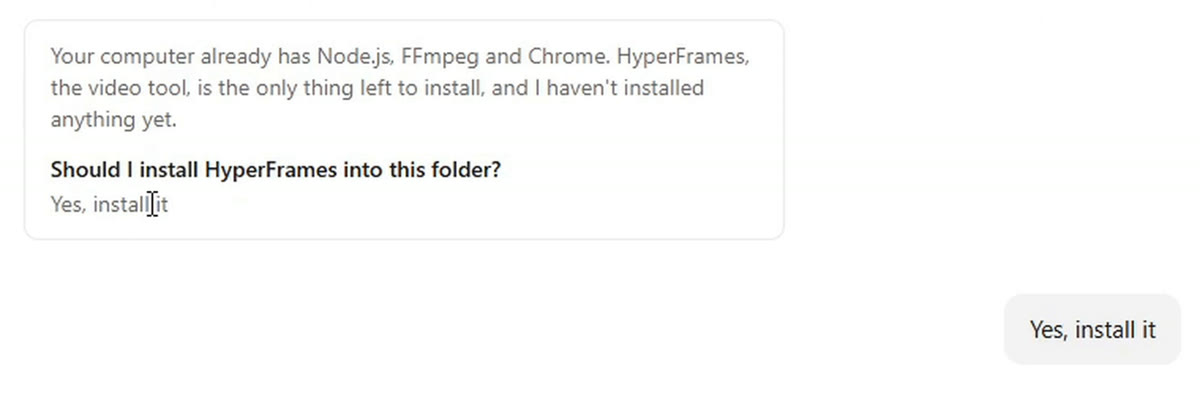
Your computer already has most of what's needed, so there's only one thing left to install. I haven't installed anything yet.
HyperFrames is a free, open-source video tool. Why it's needed: it replaces an editing app. You tell me what you want, I build it, and you get a finished video file. Cost: nothing.
I typed "Yes, install it." A couple of minutes later it said: "I'm ready. HyperFrames is installed, and I made a short test video to check that everything works."
It might ask you about usage statistics. In the tests it said the video tool sends basic usage numbers to its maker, not your videos, and asked whether to leave that on or off. Either answer is fine. I said off.
Yours might list more than one thing to install. My computer already had some of what it needed. Yours might not. Read what each one is, and say yes or no.
If you don't understand what it's asking: say "Explain that like I'm not technical" and it will.
Now give it the one-folder rule
One rule for everything we do: keep all my work in this folder. Don't open, change or delete any of my own files outside this folder. Your video tool can keep its own program files wherever it needs to. If you ever need something of mine from outside this folder, stop and tell me what it is and why, and wait for my yes. Save that as a rule so it holds in every future chat here. Then tell me in plain English what you can and can't do on my computer.
- Don't open, change or delete any of my own files outside this folder.
- Your photos, your documents, your other work. All of it stays out of reach.
- Your video tool can keep its own program files wherever it needs to.
- I added this after the first test. Without it, the rule was so strict the video tool couldn't run, and Claude had to ask for exceptions.
- stop and tell me what it is and why, and wait for my yes.
- If it ever does need something else, you hear about it first.
- Save that as a rule so it holds in every future chat here.
- You say it once. It's still the rule next week.
- Then tell me in plain English what you can and can't do on my computer.
- You get its answer in writing, in words you can follow.
What I can do on your computer: read, create, change and delete files inside the bakery folder. That covers your videos, stills, brand file and working files.
What I won't do: open, read, change or delete any of your files outside the bakery folder. Use anything of yours from outside this folder without first telling you what it is and why, and waiting for your yes.
I can't post to Instagram, send emails or use your accounts.
This is a promise, not a lock. Technically, the tools I use can reach other parts of your computer. Your computer also asks for permission before some of my actions. What keeps me inside this folder is the rule, and I'll follow it.
I like that it said that last part. The rule is a promise. The lock is the setting that makes it ask you first. Use both.
Claude tells you it's ready, you've watched the little test video it made, and the one-folder rule is saved.
Give it your brand, once
You tell Claude what your business looks like one time. It saves that as a file, and it reads that file before every video.
There are three ways in. Pick the one that fits where your business is right now. You only need one.
If you have a website
Your colours and your fonts are already on it. You don't need to know any colour codes. You send Claude to go get them.
Change the website to yours then send it.
Go to my website, tracigurney.com, and find my brand colours and fonts. Save them in this folder as my brand file, so every video you make uses them. Then make me a five-second test video with my business name in my colours and fonts, so I can check it looks like me.
- Go to my website, tracigurney.com, and find my brand colours and fonts.
- Claude reads your website and pulls the colours and fonts off it. You don't type any of them in.
- Save them in this folder as my brand file, so every video you make uses them.
- This is the line that makes it a one-time job. Without it, you'd be telling Claude your colours again next week.
- Then make me a five-second test video with my business name in my colours and fonts, so I can check it looks like me.
- A quick look before you make anything real. If the pink is the wrong pink, you find out now.
Colours: hot pink #FF0087 for highlights, near-black #1A1A1A for text and white #FFFFFF for backgrounds.
Fonts: headlines are Inter Extra Bold with tight letter spacing. Body text is Inter Light.
brand.md is your brand file. It lists your colours, what each one is for, your fonts, and simple rules such as using pink for one thing per screen.
Your logo isn't in it yet. The copy on your website is only 152 pixels wide, which would look blurry in a video. If you drop a bigger version in this folder as logo.png (at least 1000 pixels wide, with a see-through background), I'll use it from now on.
If you have a logo but no website
Drag your logo into the chat and send this.
I don't have a website. Use the colours in this logo as my brand colours, pick two fonts that suit it, and save them as my brand file.
Your brand colours (taken straight from the logo): Harbour Teal is your main background. Petal Cream is for text and shapes on teal. Bloom Coral is your accent colour, for lines, dots and one highlighted word.
Playfair Display (bold) for headlines. It's an elegant, classic serif that echoes the lettering in your wordmark. Lato for everything else.
The logo always goes on teal or another dark background, because the edges of the words disappear on white.
Nobody asked it for that last rule. It looked at the logo, saw a problem, and wrote a rule so it wouldn't happen in a video.
If you don't have a brand yet
No website, no logo, no colours. That's fine. You answer five things about your business and Claude shows you two looks to pick from.
Swap my bakery's answers for yours and keep the rest.
I don't have brand colours or fonts yet, and I don't have a website or a logo. Help me pick a look for my videos.
My business is called Maple Street Bakery.
What I do: I bake sourdough bread and pastries and sell them from a small shop.
Three words for how it should feel: warm, friendly, handmade.
What it should never look like: a supermarket ad, or anything cold and corporate.
Colours or fonts I already use: none.
Show me two different looks. For each one, make a still picture with my business name in it, and tell me in plain English what the colours and fonts are and why you chose them. Don't add any words I didn't give you. Don't make a video yet. When I pick one, save it as my brand file so every video you make uses it.
- My business is called... What I do...
- The name goes on the picture. What you do tells Claude what kind of look makes sense.
- Three words for how it should feel
- This does most of the work. Warm, friendly, handmade gets you a very different look from sleek, modern, premium.
- What it should never look like
- It's often easier to say what you don't want. Claude uses this to rule things out.
- Show me two different looks.
- You're choosing between two real pictures. That's easier than describing a look from nothing.
- Don't make a video yet.
- Pictures are quick. You pick the look first, then spend your plan on videos.
Look 1: Fresh Loaf. It looks like a hand-stamped paper bread bag. Flour cream (background): a soft, warm off-white, like a floured counter. Stark white would feel clinical, like a supermarket.
Look 2: Corner Shop. It looks like a hand-painted shop window under a striped awning. Butter yellow (background): sunny and cheerful, like soft butter.
My suggestion: Look 1 if you want people to think "this is serious, beautiful bread." Look 2 if you want them to think "what a lovely little shop, let's pop in."
Which one do you like? You can also mix them, for example "Look 1's fonts with Look 2's colours," or ask for changes, like "make the brown darker."
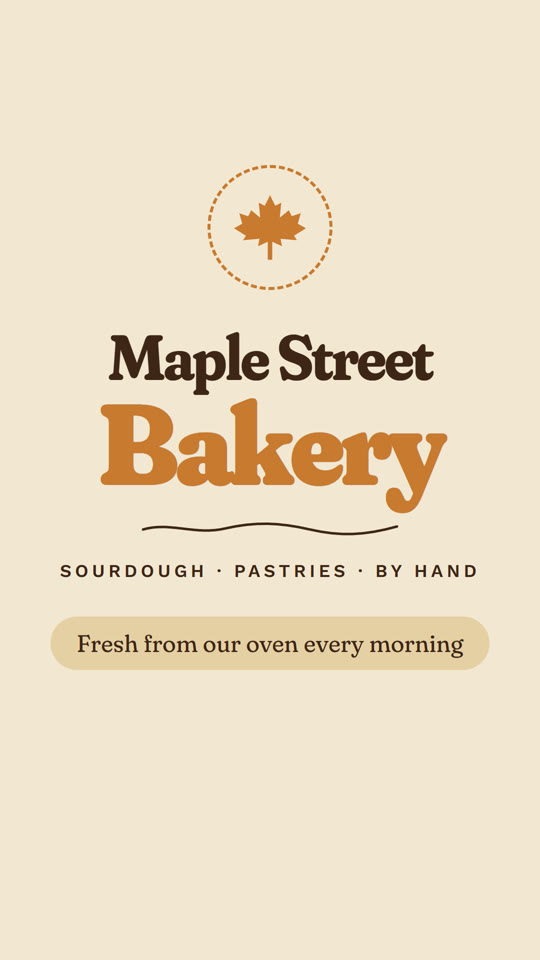
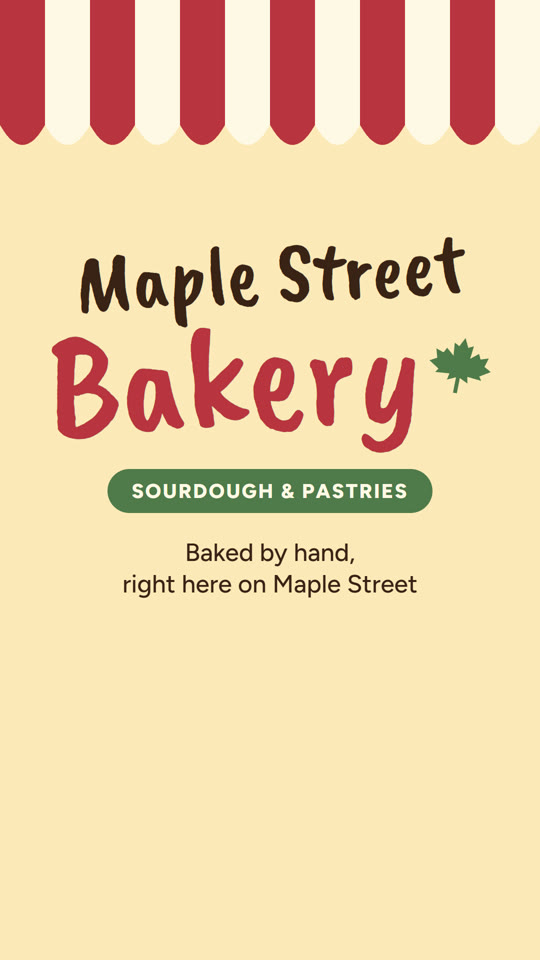
The two looks Claude made for the made-up bakery: Look 1, Fresh Loaf, and Look 2, Corner Shop.
I answered "I'll take the first one. Save it as my brand file," and it did.
If a colour or a font comes back wrong, fix it with one sentence. Swap this colour for that one.
You have a brand file in your folder, and a test picture or video that looks like your business.
Say how it should feel, and what it should never look like
Colours and fonts are what your videos look like. The feel is how they move. A few words from you set both.
If you used the five answers in the last lesson, you've done this. If your brand came from your website or your logo, add it now.
Swap in your own words then send it.
Add two things to my brand file. How my videos should feel: calm, fresh, a little bit fancy. What they should never look like: loud sale flyers, neon colours, or cartoon fonts. Then show me one still picture with my business name, so I can see what that means. Don't add any words I didn't give you.
- How my videos should feel: calm, fresh, a little bit fancy.
- Three plain words. Claude turns each one into how fast things move and how much is on screen.
- What they should never look like: loud sale flyers, neon colours, or cartoon fonts.
- Name the things that would make you wince if you saw them on your own page.
- Then show me one still picture with my business name, so I can see what that means.
- Words like "fancy" mean different things to different people. The picture shows you what Claude heard.
- Don't add any words I didn't give you.
- I added this after the test. Without it, Claude wrote a tagline for the picture and told me it was a placeholder.
Calm means slow, gentle movement, one idea at a time and lots of empty space.
A little bit fancy means the elegant headline font, thin coral lines, small spaced-out labels and the occasional slanted (italic) word. Think boutique gift card, not supermarket shelf.
No loud sale flyers: no starbursts, no "SALE!!!", no crossed-out prices, no flashing text.
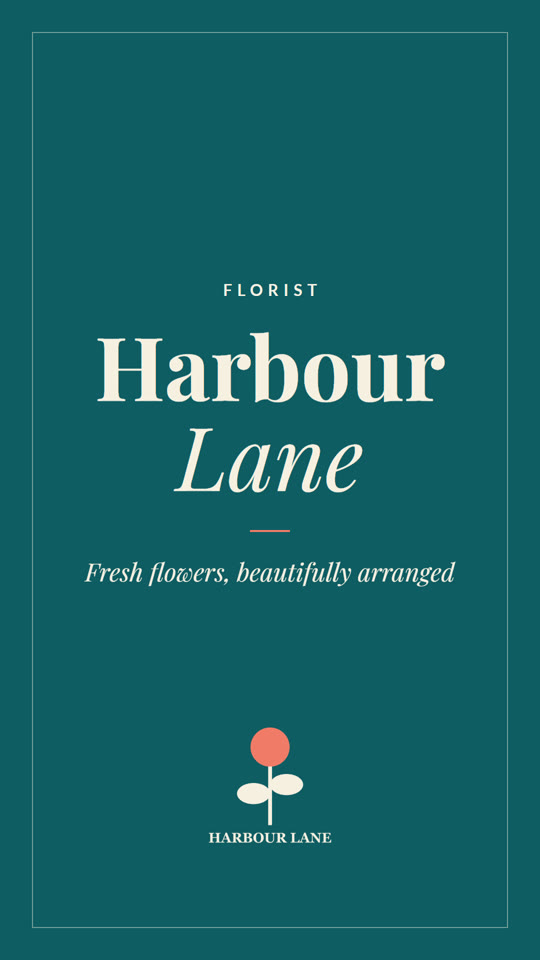
Your brand file says how your videos should feel and what they should never look like, and the picture looks right to you.
Your first reel, plan first
You give Claude the words. Claude does the look and the movement. And you see a plan before it makes anything.
No filming for this one. The video is made out of your words, your colours and movement. This is the prompt I used for a sale. It looks long, but it's only six things, and you'll use the same six every time.
Make a 15-second video announcing my sale. Here are the details: I'll set up a custom AI tool for your business, built around how you already work. It's 20% off for three days only, and you book it at tracigurney.com. Use my brand file. It's for people who already know my business, so keep it friendly. Don't add any words I didn't give you, and don't make up prices or dates.

Before you make the video, show me a plan of each scene in a few lines. Then show me three still pictures from it. Only make the video after I say yes.
The six parts of this prompt
- Make a 15-second video announcing my sale.
- What it is, and how long.
- Here are the details: I'll set up a custom AI tool for your business... you book it at tracigurney.com.
- Your words. Everything that shows up on screen comes from this part, so write it the way you want people to read it.
- Use my brand file.
- The look. This is the file from lesson 2.
- It's for people who already know my business, so keep it friendly.
- Who's watching, and how it should feel.
- Don't add any words I didn't give you, and don't make up prices or dates.
- What it's not allowed to do. Without this line, it might write a headline for you or add a date you never gave it.
- Before you make the video, show me a plan of each scene in a few lines. Then show me three still pictures from it. Only make the video after I say yes.
- The plan comes first so you know it's going in the right direction. A plan is much quicker to fix than a finished video.
0 to 4 seconds, white: "I'll set up a custom AI tool for your business," with "your" in pink italics. This scene is already showing at the very first frame, so it's the Instagram cover.
8 to 12 seconds, dark: "20% off" very large in pink, then "for three days only" in white.
12 to 15 seconds, white: "Book it at", then your pink button "tracigurney.com". It stays on screen until the end.
Words: every word on screen is yours, exactly as you sent it. I didn't add a headline, your name, prices or dates.
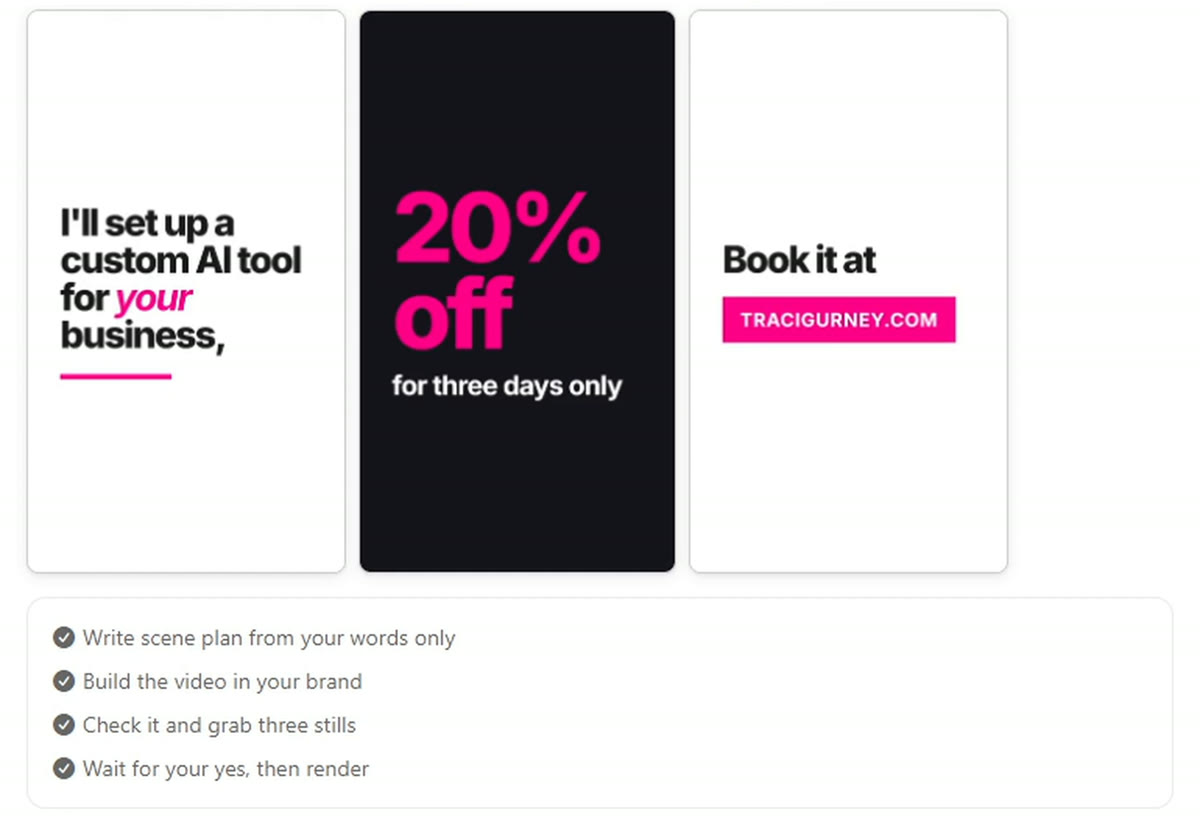
It sent three still pictures with that plan. I typed "Yes, make it," and a minute later the video was in my folder.
Now yours. Swap each part in square brackets for your own details and keep the rest.
Make a [15]-second video announcing [what you're announcing]. Here are the details: [your words, the way you want people to read them]. Use my brand file. It's for [who's watching], so keep it [how it should feel]. Don't add any words I didn't give you, and don't make up prices or dates.

Before you make the video, show me a plan of each scene in a few lines. Then show me three still pictures from it. Only make the video after I say yes.
The same prompt, for a bakery
Here it is filled in for the made-up bakery: "Cinnamon buns are back. Saturday only, from 8am until they're gone. Maple Street Bakery, 14 Maple Street."
The only words used are yours: "Cinnamon buns are back." "Saturday only" "from 8am until they're gone" "Maple Street Bakery" "14 Maple Street". There are no prices, no dates and no extra slogans.
The bun is a drawing. You don't have photos yet, so I drew one in your brand colours. If you add a photo or short clip of your real cinnamon buns to the assets folder, I can use it instead.
I made one small change to your brand. Your golden brown was a little too pale for words. Golden words now use a slightly deeper shade so they're easy to read on a phone. I've added this to your brand file.
Want your logo or your own photos in it? Drop the files into the folder and tell Claude to use them. In the flower shop test I added "put my logo on the last scene" and it did.
You've read the plan, looked at the three stills, said yes, and the video is in your folder.
Ask for changes in plain words
The first version isn't the only version. You say what you want changed, the same way you'd say it to a person.
You might not like the first version, and that's okay. When I designed my blog page with Claude, it took six rounds.
Make the headline bigger and keep it on screen one second longer. Slow down the animation in the second scene. Add the dates Nov 13–15 underneath for three days only.
Why each of these was easy for Claude to follow
- Make the headline bigger and keep it on screen one second longer.
- It names the thing, says what to do to it, and says how much.
- Slow down the animation in the second scene.
- The plan was laid out scene by scene, so I could point at the one I meant.
- Add the dates Nov 13–15 underneath for three days only.
- The new words came from me, and I said where they go. Claude didn't pick the dates.
I've made all three changes and saved the new video over the old one.
Because the opening is a second longer, the video is now 16 seconds instead of 15. If it needs to stay at 15 seconds, I can take that second back out of the booking scene at the end.
Look at that second part. One change can move something else. It told me, and it offered me a way back.
The safer way to ask
I asked for three things at once. One change at a time works better, and this prompt makes sure Claude doesn't tidy up anything you were happy with.
Swap the part in quotes for your change and send it.
Change only this: make "Saturday only" bigger. Keep everything else exactly the same. Then tell me in plain words what you changed and what you left alone.
- Change only this:
- One thing. If you have three, send three messages.
- Keep everything else exactly the same.
- Without this, a helpful fix in one place can turn into small changes everywhere.
- Then tell me in plain words what you changed and what you left alone.
- You get a list you can check against the video.
What I changed: "Saturday" is about 20% bigger. "only" is 25% bigger, so the two words grew together. The pair moved up slightly so they stay centred.
What I left alone: the rest of the video. The first version is kept next to it, in case you prefer it.
The wavy line under "Saturday" is the same size as before. Next to the bigger word it now looks a little short. I can widen it to match if you like, but I didn't, because you asked me to change only the words.
You've watched the new version, and the change you asked for is the only thing that's different.
Keep your words clear of Instagram's buttons
Instagram puts its buttons and your caption over part of every reel. Your words have to stay out of those areas.
This is what I typed in my video. It's rough, and it worked:
Also make sure you take in consideration the places that Instagram hides areas and want to make sure that nothing gets covered.
You don't have to word things perfectly. You have to say what you're worried about. But here's a cleaner one that also asks for the proof and makes the check permanent.
Instagram covers parts of a reel with its buttons and my caption. Check every scene and make sure none of my words sit in those areas. Show me the scenes with the covered areas shaded. Then save those areas in my brand file, so you check every video from now on.
- Check every scene and make sure none of my words sit in those areas.
- Every scene gets looked at. In the test the problem was in scenes 1 and 2.
- Show me the scenes with the covered areas shaded.
- You get a picture. You can see for yourself that the words are in the clear part.
- Then save those areas in my brand file, so you check every video from now on.
- You ask once. After this it's part of every video.
Top 250 pixels: the "Reels" heading and camera icon.
Bottom 450 pixels: your username, caption and the audio label.
Right edge, from the middle down: the like, comment, share and more buttons.
Left edge: a thin strip that can fall off the screen on some phones.
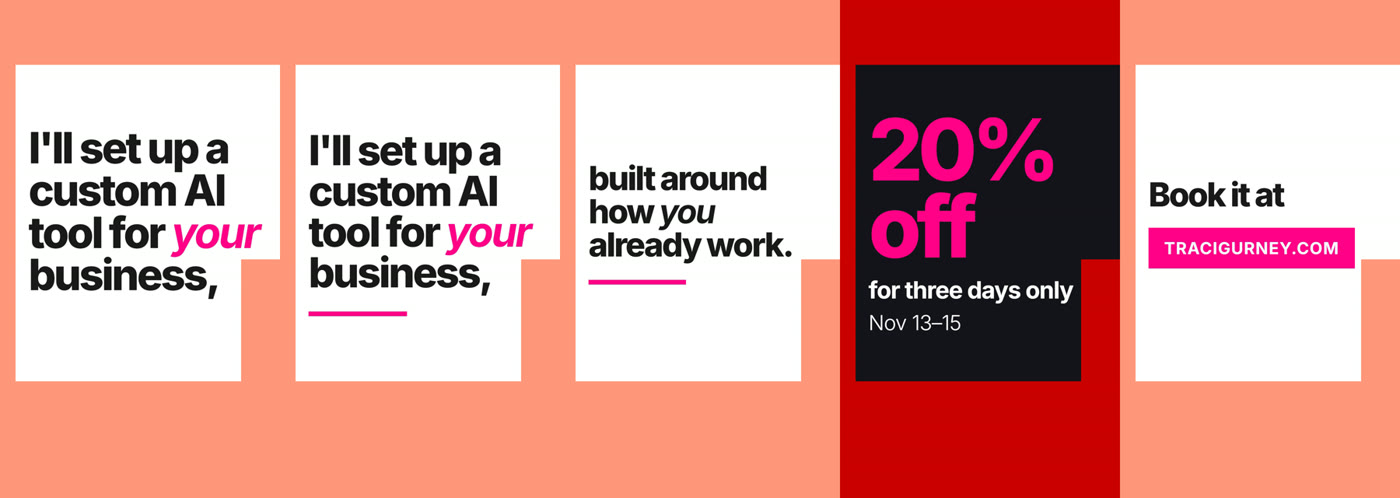
Your words were sitting in covered areas in two places, so I fixed both and made a new version of the video.
Scene 2, "Saturday": the end of the "y" ran under the like and share buttons. I made "Saturday" about 10% smaller. This takes back part of your last change. That's the largest it can be and still fit inside the safe box.
Instagram doesn't publish one fixed layout, and it changes a little between phones and app updates. Where sources disagreed, I used the more careful number.
That's the bigger "Saturday" from the last lesson. Making it bigger pushed it under the buttons, and the check caught it. The numbers Claude gave the bakery were a little different from the ones it gave me, which is the last line there. So look at your phone's preview before you post.
Claude has shown you your scenes with the covered areas shaded, and every word sits in the clear part.
Add sound, or don't
Your reel is silent unless you ask for sound. You can add a song in Instagram when you post, or have Claude put sound in the video.
A lot of people watch reels with the sound off, so silent is fine. Instagram's own music is licensed for Instagram. If you do want sound in the file, ask for it like this.
Add sound to this video. A soft sound each time new words appear, and calm music underneath, quiet enough that it doesn't take over. If you don't have sound files, make simple ones in code. Tell me where each sound lands. Save it as a new file so I keep the silent one.
- A soft sound each time new words appear,
- One sound for each thing that happens on screen. That's what makes it feel finished.
- and calm music underneath, quiet enough that it doesn't take over.
- Say the mood, and say how loud. Calm, upbeat, quiet, bold.
- If you don't have sound files, make simple ones in code.
- It tells Claude what to do when something's missing, so it doesn't stop and ask.
- Tell me where each sound lands.
- You get a list, so you can say "no sound on that one."
- Save it as a new file so I keep the silent one.
- If you don't like the sound, you still have the version without it.
There are 8 soft "plucks," one each time new words appear. Calm music plays from start to finish. It fades in over the first second and out over the last second and a half.
I measured the sound but can't listen to it. The timing and volume numbers are right, but whether it sounds pleasant is your call. Please listen with headphones or your phone before posting.
It's simple music made in code, as you asked, so it's pleasant but basic. If it sounds too plain, Instagram's music library will sound more polished.
Then say what you think, the way I did on mine:
- “add a little bit of sound, make it upbeat.”
You've played it with the sound on, and you still have the silent version.
What a skill is, and how to save yours
Don't let the word skill scare you. A skill is you telling Claude how you want something done, written down once, so you don't have to say it again.
Think about everything you told it so far. Use my brand. Only my words. Show me the plan first. Watch out for Instagram's buttons. Wait for my yes. I don't want to type all of that again next time. So I save it.
Save everything we did today as a skill called brand-video. When I ask for a new video, use my brand file, use only the words I give you, show me the scene plan and three stills first, and keep words out of Instagram's button areas on vertical videos. Only make the video once I say yes.
What each line is doing
- Save everything we did today as a skill called brand-video.
- The name is what you type next time. Pick one you'll remember.
- When I ask for a new video, use my brand file,
- Lesson 2, saved.
- use only the words I give you,
- Lesson 4, saved. It can't write copy for you.
- show me the scene plan and three stills first,
- Lesson 4 again. You always see it before it's made.
- and keep words out of Instagram's button areas on vertical videos.
- Lesson 6, saved.
- Only make the video once I say yes.
- That way you're not creating a bunch of videos you didn't want and using up your plan.
When your computer asks, choose Allow. Skills live in a protected folder, so the app asks your permission before Claude saves one. In the test nobody was there to click Allow, and the skill wasn't saved. Claude said so and didn't try to get around it.
What ended up inside my skill
Claude wrote the skill as a file. I didn't write it. At the top are four rules, and it follows them every time I type the name.
- 1
Brand file
It reads my brand file before every video. It doesn't invent other colours or fonts.
- 2
My words only
Every word on screen comes from my message, exactly as I wrote it. If a scene feels empty, it says so in the plan and asks. It doesn't fill it.
- 3
Plan first
A short scene plan before it builds anything I'd see as final.
- 4
Make the video only after yes
It shows the plan and three stills, then it stops and waits.
Your opening words are on screen from the very first frame, so the Instagram cover is never blank.
Videos are silent unless you ask for music, so you can add licensed music in Instagram.
If a change makes the video longer, it tells you and offers a way back to the original length.
I never asked for those three. They came from the session. That's what a skill does for you. It keeps what you worked out, so the next video starts from there.
Keep adding to it
Any time a session teaches you something, a size that works, a sound you like, add it.
Add what we learned today to my brand-video skill, so the next video starts from here. Show me what you added, in plain English.
Your words beat the usual ending. If your message doesn't include your name and address, they're left out.
A better cover tip. If the first moment only shows part of the message, such as "0" at the start of a count, you're told which second to pick as your cover.
Four ready-made styles to start from: one line at a time, steps that build up, a number that counts up, a customer's quote.
In a new chat in the same folder, you type /brand-video and it knows what to do.
Save a request that worked
When a reel comes out the way you wanted, the request that made it is worth keeping. Save it with blanks, and next month you fill in the blanks.
The skill holds your rules. A template holds one kind of video. You'll end up with a few: the sale one, the new product one, the weekly special.
Save the request I used for the Saturday special as a template I can reuse. Put blanks in square brackets where the details change, and save it in a folder called templates. Show me the template.
Make a [length, e.g. 15]-second video announcing my [what it is, e.g. Saturday special]. Here are the details: [headline, e.g. Cinnamon buns are back.] [when, e.g. Saturday only], [time, e.g. from 8am until they're gone]. Maple Street Bakery, 14 Maple Street. Use my brand file.
Kept fixed: your business name, your address and all your instructions are already filled in, since they stay the same each time.
To use it: copy the template, fill in the brackets, and paste it to me.
There's a templates folder in your project with your first template in it.
Six kinds of reel, and how to describe a look
Once the skill is saved, a new reel starts with a description. The more you say about the look, the closer the first plan is to what you pictured.
Every one of these has the same three parts: what it is, the exact words, and the look. The first two are the ones I showed on screen in my video. The other four were tested with the made-up bakery. Swap the words for yours.
1. A text message conversation
/brand-video Make a 10-second video for Instagram Reels. The messages are:
Me: “I need a video for my sale this week.”
Claude: “Tell me the details. I'll use your brand.”
Me: “20% off for three days.”
Claude: “Here's the plan and three stills. Say yes and I'll make it.”
Look: dark background. The words show up as text message bubbles on a phone screen, one bubble at a time, with a typing dots bubble before each one.
- /brand-video
- The name of the skill. That one word brings in the brand file and the rules.
- The messages are: Me... Claude... Me... Claude...
- The exact words, in order, and who says each one. These are the only words that will be on screen. Yours could be you and a customer.
- Look: dark background. The words show up as text message bubbles on a phone screen...
- You describe what you'd see, like you're telling a friend about a video. You don't say how to build it.
Pink: only the "20% off" bubble, since your brand allows pink on one thing per screen.
One change from what you asked: the first bubble has no typing dots before it. Your first frame is the Instagram cover, so your opening message has to be on screen at 0 seconds.
2. A before and after
The first time I asked for this one, all I gave it for the look was this:
- “Look: dark background. The screen splits in two. The left side is dull grey and messy for before, the right side is clean and bright in my brand colours for after.”
The ending: your words don't say how to finish, so I replayed your "After" line full screen for the last four seconds. If you'd rather keep the split screen to the very end, I can do that.
Nothing wrong with that. But it was guessing at the parts I hadn't described. So I wrote it again and said what happens from start to finish.
/brand-video Make a 14-second video for Instagram Reels: a before and after.
Before: “Open an app.” / “Pick a template.” / “Drag everything around.”
After: “Describe it.” / “Claude builds it in your brand.”
Look:
- Dark background the whole time.
- Before: everything is dull grey and cluttered. Messy template boxes, crooked text, and a mouse cursor dragging things around. Each before line lands a little off centre, and the screen gets more crowded with each one. The movement feels rushed and jerky.
- The turn: a thin line in my accent colour wipes across the screen and sweeps the clutter away.
- After: clean and calm, in my brand colours and fonts. “Describe it.” types out on one line. Then a finished video frame builds itself, the headline, a colour block and the logo space each snapping neatly into place.
- “Claude builds it in your brand.” lands big in my headline font, with “your brand” in my accent colour. The movement is slow and smooth.
- End card: my name and tracigurney.com.
Sound: busy clicks on the before part, a whoosh on the wipe, then calm music and a soft hit when the last line lands. If there's no music file, make a simple one in code.
- Look: Before... The turn... After... End card.
- It goes in the order the video plays. Each line says what you see and how it moves: rushed and jerky, then slow and smooth.
- a thin line in my accent colour
- I say "my accent colour" and "my headline font". I don't name the pink. The brand file knows which one it is.
Headline in the video frame: I showed it as dark bars rather than words, so no words appear that you didn't write.
3. One quick tip
/brand-video Make a 12-second video for Instagram Reels: one quick tip.
The lines are: "Bread going stale?" / "Don't put it in the fridge." / "Keep it in a paper bag on the counter." / "Maple Street Bakery"
Look: one line at a time, big and easy to read. The first line is a question and it stays up a little longer. The tip itself is the biggest thing in the video.
"Bread going stale?" Readable from the very first frame, so the cover picture isn't blank. This is the longest-held line, as you asked.
"Keep it in a paper bag on the counter." The tip, and the biggest words in the video. "paper bag" is golden so the eye goes straight to it.
There's no address on the last screen. You didn't include it in this message, so I left it out.
That last line is the "my words only" rule. The address was in the last video, but I didn't give it this time, so it didn't go in.
4. How it works, in three steps
/brand-video Make a 15-second video for Instagram Reels: how ordering works, in three steps.
Title: "How to order a birthday cake"
Steps: 1. "Message us your date." 2. "Pick a flavour." 3. "Pick it up on the day."
End: "Maple Street Bakery" / "Order by Wednesday for the weekend."
Look: each step appears one at a time with a big number beside it. The earlier steps stay on screen, smaller, so by the end I can see all three.
Step 1 shrinks and moves up to the top. Step 2 arrives big in the same spot. All three stay on screen together for about 3 seconds.
Earlier steps shrink to 60% of their size. At half size they looked a bit small for a phone, so I made them larger.
5. One number
/brand-video Make a 10-second video for Instagram Reels about one number.
The lines are: "312" / "loaves baked by hand this week" / "Thank you, Maple Street."
Look: the number counts up from zero to 312 and lands big. Then the second line comes in underneath. Use only the number I gave you. Don't round it or change it.
It counts up from 0, quickly at first and then slowing down, and lands on exactly 312. The number it lands on and holds is exactly 312, and it never goes higher. Nothing is rounded.
Cover picture: the very first frame shows "0", the start of the count. When you post, choose a cover from after the number lands, so 312 is what people see on your profile.
6. A customer's words
/brand-video Make a 12-second video for Instagram Reels: a customer's words.
The quote is: "Best sourdough I've had since I left San Francisco."
The name is: Dana, Saturday regular.
End: "Maple Street Bakery"
Look: the quote appears a few words at a time, like someone is saying it. The quotation marks are in my accent colour. The name comes in small underneath. Don't change a single word of the quote.
The quote is exactly as you wrote it, word for word and in the same order. The rest arrive a few words at a time, breaking where you'd naturally pause when saying it, so it feels spoken.
Permission: since this is Dana's own words with Dana's name on it, it's worth checking that Dana is happy to be featured before you post.
Only use a real number and a real quote. The bakery's are made up because the bakery is made up. Yours go out under your name.
You've made a second reel by typing the skill's name and describing what you want.
Set up for videos you film on your phone
Claude can edit a video you filmed. It needs two folders, and one free tool that listens to your video and writes down what you said.
Everything so far was made without a camera. If you'd rather talk to your phone, this part is for you. Same folder, same brand file.
I also want you to edit videos I film on my phone. Make two folders in here if they're missing: Raw, for my phone videos exactly as I filmed them, and Done, for finished videos. Never change, move or delete anything in Raw.

You can't hear a video, so you'll need a way to write down what I say with a time for every word. Check what's already on this computer for that. Before you install anything, tell me in plain English what it is, how big the download is, whether it costs anything, and why you need it. Then wait for my yes.
- Raw, for my phone videos exactly as I filmed them, and Done, for finished videos.
- One place for what you filmed, one place for what's finished. You always know which is which.
- Never change, move or delete anything in Raw.
- Your original is safe no matter what happens in the edit. Claude works on a copy.
- You can't hear a video, so you'll need a way to write down what I say with a time for every word.
- Claude can't listen on its own. A free tool does the listening and writes down every word with its time. Once that tool is there, Claude knows what you said and when. That's how it finds your pauses and times your captions.
- tell me in plain English what it is, how big the download is, whether it costs anything, and why you need it.
- Speech-to-text tools can be big downloads. You hear the size and the price before anything happens.
Raw is for your phone videos exactly as you filmed them. I'll only ever read from it, never change, move, rename or delete anything in it. I've saved that rule in the project's instructions file, so it holds in future sessions too.
It runs entirely on your computer. Your videos aren't uploaded anywhere, and it's free to use.
One small catch: it spelled your name "Tracy". I've noted to always correct it to "Traci".
So can it hear? In a way, yes. It reads what you said, word by word.
What that tool gives Claude, and what it doesn't
- 1
It gives Claude your spoken words, each with its time
Nothing else. Only the words.
- 2
It doesn't tell Claude about any other sound
Your music, your tone of voice, a dog barking, whether you sound clear. Claude can measure how loud something is. It can't tell you if it sounds nice. That part is your ears.
- 3
It doesn't tell Claude what's on the screen
For the picture, Claude looks at still frames from your video, one at a time. That's how it sees your face, or words that are already on screen, and keeps the captions off them.
On my computer the tool was already there, because it comes with the video tool from lesson 1. On yours Claude may ask to download it. That's the part where you read the size and say yes.
- 1
Film the way you always do
Talk to your phone. Leave the stumbles in. Claude cuts them.
- 2
Get the video onto your computer
The way you'd send yourself a photo.
- 3
Put it in the Raw folder
You have a Raw folder with your phone video in it, and a Done folder that's empty.
Your first edit
You tell Claude what a good edit is: cut the dead air, add captions, make it tall. It shows you the plan before it makes the video.
Edit the newest video in Raw. Work on a copy and leave the original alone.
1. Write down what I say, with a time for every word. Don't invent anything I didn't say.
2. Cut the long pauses, the stumbles and the false starts. Keep a natural breath between sentences. Don't speed up my voice.
3. Add captions timed to my voice, a few words at a time, in my brand colours and fonts. Keep them off my face and out of the areas Instagram covers with its buttons and caption.
4. Make it tall, 1080 x 1920, for Instagram Reels. If I filmed it sideways, show me how you'd frame it.

Before you make the video, show me the plan: how long it was and how long it'll be, what you cut, and three still pictures with the captions on. Only make the video after I say yes. Save it in Done as a new file. Never post or upload anything.
What each line is doing
- Work on a copy and leave the original alone.
- Same promise as the Raw folder. Said again, because this is where the cutting happens.
- Don't invent anything I didn't say.
- Captions are your words on screen. If the tool mishears a word, you want to be asked, not guessed at.
- Keep a natural breath between sentences. Don't speed up my voice.
- Cut too tight and you sound like a robot. This keeps you sounding like you.
- Keep them off my face and out of the areas Instagram covers
- The same safe zone as lesson 6, plus your face.
- show me the plan: how long it was and how long it'll be, what you cut, and three still pictures
- Plan first, same as every other video. You see what's coming out before it's gone.
- Never post or upload anything.
- Claude makes a file. You decide what gets posted.
How long: it's 63.7 seconds now and will be about 61.7 seconds after editing.
The longest pauses. I shortened 9 of them, cutting only silence and never a word. I left about 0.3 seconds of breathing room each time, so you still sound natural.
When you're talking to camera: a tall slice of the picture with your face in the centre. Where I cut out a pause, I switch between a normal and a slightly closer shot. This hides the little jump the cut would otherwise cause.
Captions: 1 to 4 words at a time, timed to your voice. White Inter Extra Bold, with each word turning your brand pink as you say it. They sit on your sweater below your chin, so they stay off your face and out of the areas Instagram covers.
Two words to check, because I don't want to put words in your mouth. At 3 seconds, both tools heard "jumping from one tap to another". I suspect you said "tab".
That last one is the line "don't invent anything I didn't say" doing its job. It heard "tap", it thought I said "tab", and it asked.
Take it further, a reel people stop for
The edit above is tidy. A reel that stops people scrolling needs more: an opening that moves, pictures that show what you're saying, and only the lines that earn their place. Here's mine, from the first 75 seconds of my YouTube video, straight off the camera.
Swap my lines for yours and keep the rest.
Make an Instagram Reel from opening-raw.mp4 in Raw. It's the start of a longer YouTube video, straight off the camera. Work on a copy and leave the original alone.

What to keep
- From my first words up to "All you give it is your words." Nothing after that.
- Cut "and who knows how to do them properly" and "what all goes into them". They're filler.
- After I name the platforms, cut straight to "So let's make one for your business."
- Cut the long pauses, the stumbles and the false starts. Where I said a line twice, keep the last clean take. Keep a natural breath between sentences. Don't speed up my voice.
- Write down what I say with a time for every word, and don't invent anything I didn't say.

Layout
- 1080 x 1920. The opening grabs people, with motion from the first frame: a quick zoom in on me, then a slow push-in. From the first second, big notification cards, about half the screen wide, fly in around me with a little shake. As I say "post more", "be on Instagram" and "make reels", each lands bigger than the last, stacking up until they nearly bury the top of the screen, clear of my face. No captions while they're on screen. On "But who has time", a pink wipe sweeps the pile away and the screen splits.
- After that, split the screen exactly in half. Bottom half: me, filling it edge to edge, cropped in so my face is big and centred. Top half: animation.
- My captions go on my half, in my style from style.md, where they're easy to read and clear of my face and of the areas Instagram covers.

Animation, in my brand colours and fonts, in the top half
- Something is always there. Each graphic stays until the next one comes in.
- Each graphic fully leaves before the next one comes in. Never two graphics on screen at once.
- Time each one to what I say. When I say "your brand colours" and "your fonts", my colour swatches and a font sample appear. When I say "it sizes it for Instagram Reels", show the sizing: a wide video frame squeezes into a tall phone shape. When I say "tell Claude", show the Claude icon above a speech bubble. When I name the platforms, each one's real icon appears as I say it, with a small name label. Use official icons as they are, not redrawn or recoloured.
- Don't repeat my words in the top half: the captions already show them. Show pictures that illustrate what I'm saying, in simple animated icons and shapes. Words up there only as a small label on a picture.
- Every word on screen is one I say. Smooth and quick, about half a second in and out. No sound effects.

Before you make the video, show me the plan: how long it'll be, what you cut, and three still pictures. Only make the video after I say yes. Save it in Done as a new file. Never post or upload anything.
What each part is doing
- From my first words up to "All you give it is your words." Nothing after that.
- You decide where the reel starts and stops. A YouTube intro is filler in a reel.
- Cut "and who knows how to do them properly" and "what all goes into them". They're filler.
- Name the exact words. Claude can't tell which lines you think are padding.
- The opening grabs people, with motion from the first frame
- The first second decides whether someone keeps watching. Say what moves and when, not "make it exciting".
- split the screen exactly in half
- Your face stays big, and the pictures get room of their own.
- Each graphic fully leaves before the next one comes in.
- Without this, the old one was still fading when the new one arrived, and it looked like a mistake.
- Don't repeat my words in the top half
- The captions already say it. The top half should show it.
- Use official icons as they are, not redrawn or recoloured.
- Without asking, Claude kept other companies' logos out. With this line it used the real ones and said where each came from.
Top half, one graphic at a time, each entering in 0.5 s and leaving in 0.4 s before the next arrives.
tell Claude: the official Claude icon above a speech bubble with typing dots.
One change to the approved look: the dark band behind captions is 68% instead of 40%, because the pink word failed the contrast check over your pale wall at 40%.
With your face big in the bottom half, your chin sits inside the strip Instagram overlays with its caption and buttons.
It took me five rounds of changes to get here: the cuts, clean transitions, pictures instead of my words again, a bolder opening, the real icons. Every one of those notes is now in that prompt. Run fresh in a new chat, it made a reel like mine in one go.
You've read the plan, checked the three stills, said yes, and the finished video is in Done.
Fix it in plain words
Same as lesson 5. Say what's wrong and what you want. Ask for a new version, so the one before stays safe.
The captions are too small. Make them bigger. Save it as a new version so I keep the first one, and tell me what you changed.
Bigger text: on average they're about a third bigger.
Fewer words at a time: each caption now shows up to 3 words instead of up to 4. Without this, the bigger text wouldn't fit across the screen.
What stayed the same: everything except the captions. The cuts, the framing, your audio.
When a caption has the wrong word
Give the time on the video and the right word. The time is the fastest way to point at the spot you mean.
At 3 seconds I said tab, not tap. Fix the caption. Save it as a new version.
What changed: only that one word. The caption at 3 seconds now reads "from one tab". Everything else is exactly as in version 2.
It stays fixed: I've added "tab" to my list of your confirmed corrections, so it won't change back if I rebuild the captions later.
Both versions are in Done, and the new one has the fix.
Teach it your taste
Your brand file is the look. Your taste is the pace: how fast it moves, how big the words are, how it ends. You show Claude reels you like and it writes down what they have in common.
- 1
Pick two or three reels you like
Go for the editing, not the topic. Ones filmed a bit like yours work best.
- 2
Save each one as a video file
A screen recording on your phone works. Links often need a login, and a file doesn't.
- 3
Put them in a folder called References, inside your project folder
I put two reels I like in a folder called References. Take inspiration from them, don't copy them. Look at real still frames from each one, about one a second, and work out: how fast it moves, where the words sit and how big they are, how many words are on screen at once, and how it ends.

Write what you found in plain English in a file called style.md. Add a short list of what stays theirs: their words, footage, music and branding. Show me style.md and ask me what I'd change.
- Take inspiration from them, don't copy them.
- You're borrowing a pace and a feel. Their words, their footage and their ideas stay theirs.
- Look at real still frames from each one, about one a second,
- It makes Claude actually look at the videos. It can't guess from the file name.
- how fast it moves, where the words sit and how big they are, how many words are on screen at once, and how it ends.
- Four things you can see and copy the feel of, without copying the video.
- Write what you found in plain English in a file called style.md.
- Like the brand file. Written down once, used every time.
- Show me style.md and ask me what I'd change.
- It's your taste. You get the last word on what goes in.
There are no hard cuts at all. Each reel is one continuous animated scene, with something new appearing about every second.
The closing line is huge. It sits in the middle of the screen, not low like subtitles.
Colour does the emphasis: white for the main words, pink for the last few words (the payoff), and grey for "the old, messy way".
What would you change? Should I treat the "How I'd use this" ideas as rules for every video, or just as suggestions?
And when an edit comes out exactly right, send this, so the next one starts there.
This is the one. Add what we changed in this video to style.md, so the next edit starts from here. Show me what you added.
Cut only inside silence, never into a word. Leave shorter pauses alone, and never speed up your voice.
Captions: up to 3 words at a time. White words, each turning pink while you say it. On your chest, below your chin, and clear of Instagram's buttons and caption.
Captions are only what you said. If a word is unclear, I ask; I never guess.
Not used yet: the ideas from the reference reels (an opening headline, a name card at the end, music) weren't used in this video. I'll only add them if you ask.
There's a style.md in your folder, and it reads like you.
Check it before you post
Claude checks the file. You check the things only a person can.
Six things to look at
- 1
The very first frame has your words on it
Instagram uses the first frame as the cover. If it's blank, your cover is blank.
- 2
Every word is clear of the shaded areas
Look at the shaded stills from lesson 6.
- 3
Every word on screen is one you gave it, or one you said
On a filmed video, read the captions. Names and odd words are where it mishears.
- 4
If it has sound, play it with the sound on
Claude can read what you said, but it can't tell how the music sounds. It told me so every time, and asked me to play it before I posted.
- 5
If it's the right size
Ask. "Is this perfect for Instagram Reels, or do you have to resize it?"
- 6
Look at it on your phone
The areas Instagram covers shift a little by phone, so look at the preview before you post.
Then get it onto your phone
- 1
Ask Claude to open the folder
Your video is a file in the folder you picked at the start.
- 2
Send the file to your phone
The way you'd send yourself a photo.
- 3
Post it on Instagram as a reel
When it asks for a cover, pick the first frame. If you didn't add music, add a song from Instagram.
Your reel is up.
Getting unstuck
When something's off, tell Claude what you see, in plain words. Every one of these happened to me or in the tests.
- 1
You don't understand what it's asking you
Say "Explain that like I'm not technical."
- 2
A colour or a font came back wrong
Fix it with one sentence. Swap this colour for that one.
- 3
It added words you didn't write
It wrote a tagline on a sample picture in the test, and told me it had. Say "Take that out. Only use words I give you." Then put "don't add any words I didn't give you" in your next request.
- 4
It downloaded something without asking
In the test it downloaded four free fonts, then owned up to it. Say "Ask me before you download anything, including fonts and music," and it saves that as a rule.
- 5
The video got longer after a change
Mine went from 15 seconds to 16. Claude told me, and offered to take the second back out of the last scene. Ask for that.
- 6
A change undid your last change
The safe zone check made "Saturday" smaller again, because the bigger one ran under the buttons. Claude said so. When two things you asked for can't both happen, it should tell you which one won.
- 7
Your request goes against your own brand file
I asked for the logo at the end, and the brand file said logo first. Claude did what I asked and then asked which rule to keep. Answer it, so the file matches what you want.
- 8
Your logo is missing or blurry
The one on your website is probably too small. Drop a bigger file in the folder, at least 1000 pixels wide with a see-through background, and tell Claude to use it.
- 9
The skill didn't save
Your computer asked for permission and it wasn't given. Ask again, and choose Allow when it asks.
- 10
A caption has the wrong word
The speech-to-text tool misheard you. Tell Claude the time and the right word.
- 11
You're worried about using up your plan
That's what "plan first" and "only after I say yes" are for. You're not making videos you didn't want.
For anything not on this list, describe what you see and send this.
Something's not right: [describe what you see]. Before you change anything, tell me in one plain sentence what you think caused it. Then suggest the smallest fix, and tell me first if it needs a download or changes anything else. Keep my last working version.
Your next one takes one sentence
Start a new chat in the same folder, type /brand-video, and describe what you want. Or drop a new video in Raw and say "edit my newest video." You don't set anything up again. Talk about your products, your services, some behind the scenes, some customer tips.
Rather have it built for you? See how I work.