
Claude for Small Business: 31 Skills, $20
Claude's small business plugin installs 31 pre-built skills and 12 tool connectors in one click. Here's the setup, the two settings to change first, and what the skills produced on a brand new account.
I tried to film this on my own Claude account first. It didn't work.
Claude already knew far too much about my business. My memory was on. My custom instructions were in there. You'd have been watching a version that had been shaped around me for months, and that's not what you get on day one.
So I opened a completely new account and filmed everything on that.
Every screen on this page is out of the box. Before memory, before a business brief, before any of the setup work that makes Claude better. If this is what it does cold, the version you'll have in three months is a different conversation.
The short answer
Claude for small business is a plugin you install inside the Claude desktop app on a Pro plan, and it adds 31 pre-built skills and 12 tool connectors in one click. A skill is a job someone already worked out the steps for, like chasing overdue invoices or building a Monday morning brief. A connector is the bridge that lets Claude read your PayPal, HubSpot, Gmail or calendar directly. You run a skill by typing a forward slash and picking it, and by default Claude asks your permission before it does anything.
At a glance
- Time
- ≈ 15 minutes to set up
- Cost
- Claude Pro
- You need
- The desktop app
- Where
- Customize, then Plugins
You've got invoices to chase.
So you open Claude and ask it to write a follow-up email. It writes a good one. But it doesn't know which client is late, or the amount, or the last time you contacted them.
So you go back to PayPal or QuickBooks or Square, find the late one, pull the numbers, rewrite the email with the real details, and send it yourself.
There's a version of Claude that does all of that for you. It goes into PayPal, finds who's late, reads your email history, drafts the follow-up with real names, real amounts and real dates, and then stops and waits for you to say go.
The part that got my attention: "If you hired someone to do all of this, an assistant, a bookkeeper, someone to run your Monday mornings, you'd pay $5,000 a month, guaranteed."
This is $20 a month.
What makes it different from just asking Claude a question is that everything's already there. Your tools are connected, Claude knows what to look for, and the steps for each job are already worked out. You describe what you want done rather than how to do it, and it asks before it acts.
The screenshots below are from the recording. Watch the video below to see it running on real numbers.
Key takeaways
- 01
One click installs 31 skills and 12 connectors. A skill is a pre-built job with the steps already worked out. A connector is permission for Claude to read one of your existing tools. You aren't building anything, you're switching things on.
- 02
Claude drafts, you send. The invoice skill wrote the follow-up email and put it in Gmail, and it stopped there. Sending was still mine to do, which is the guardrail working as designed.
- 03
Anthropic does not train its models on your business data. That covers your PayPal numbers, your client emails and your sales pipeline. Claude also respects the permissions each tool already has, so nobody sees through Claude what they couldn't see directly.
Prefer to watch
21:19Installing it and running your first skill
Get the desktop app
Download the Claude desktop app, because Cowork lives in there and the browser version doesn't have it. At the time I recorded this, the plugin doesn't work in the browser at all.
You'll also need a Pro plan. That's the $20 a month everything else on this page sits on top of.
One thing before you start: this space moves fast. The exact skills and screens may look different by the time you read this, because Anthropic updates constantly. The principles stay the same. Connect your tools. Run a task. Approve it before anything moves forward.
Install the plugin
In the left sidebar, hit Customize, then Plugins, then browse.
Search for small business. It's built by Anthropic. Hit install.
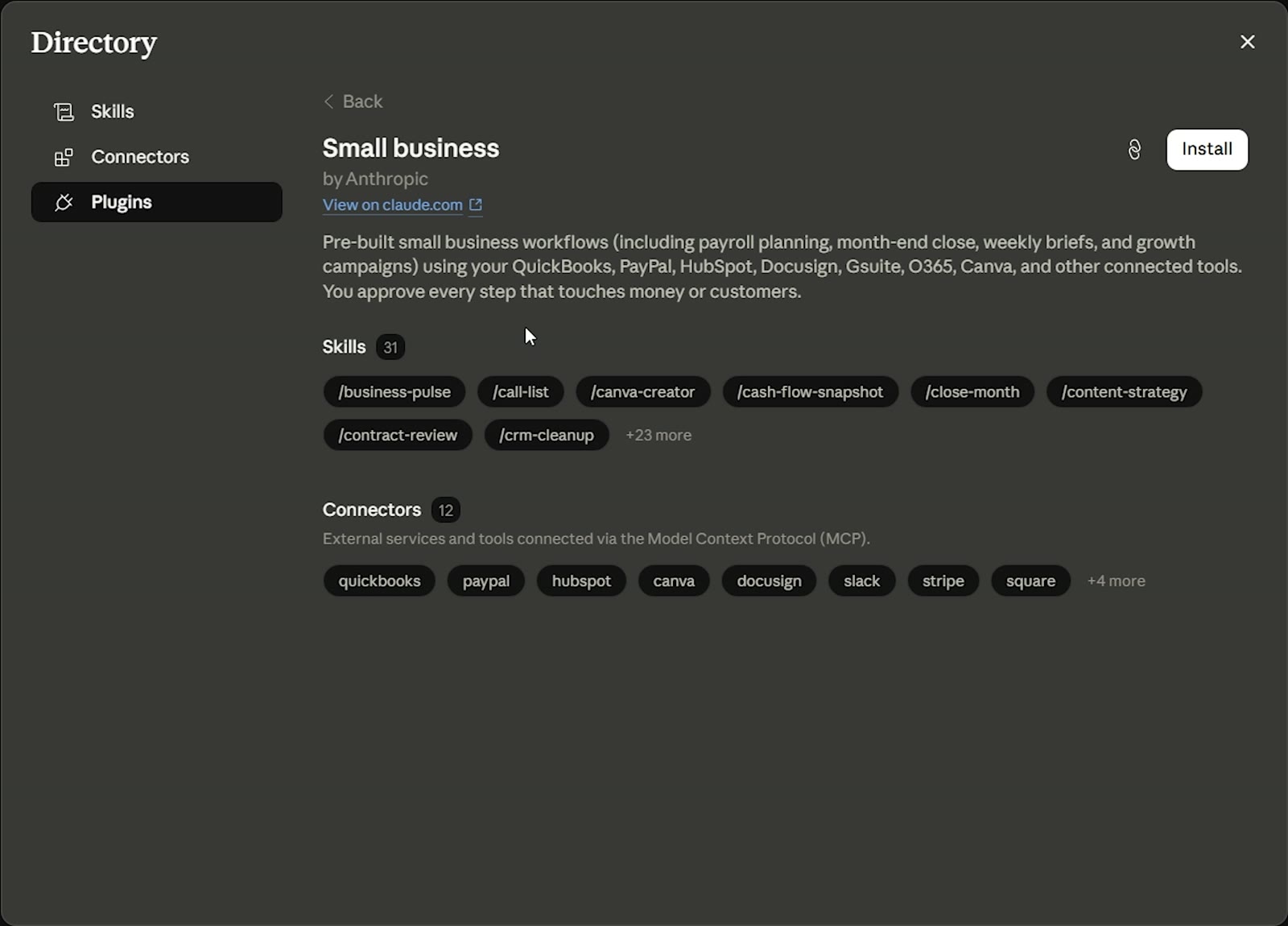
That's the whole installation. One click, and 31 skills and 12 connectors land in your account. You can manage any of them later, edit them, turn them off, or uninstall.
Change two settings before you run anything
This is the step to not skip.
Check your model first. Opus sits at the top of the list and you shouldn't use it here, because it'll burn through your usage limits fast. Stay on Sonnet.
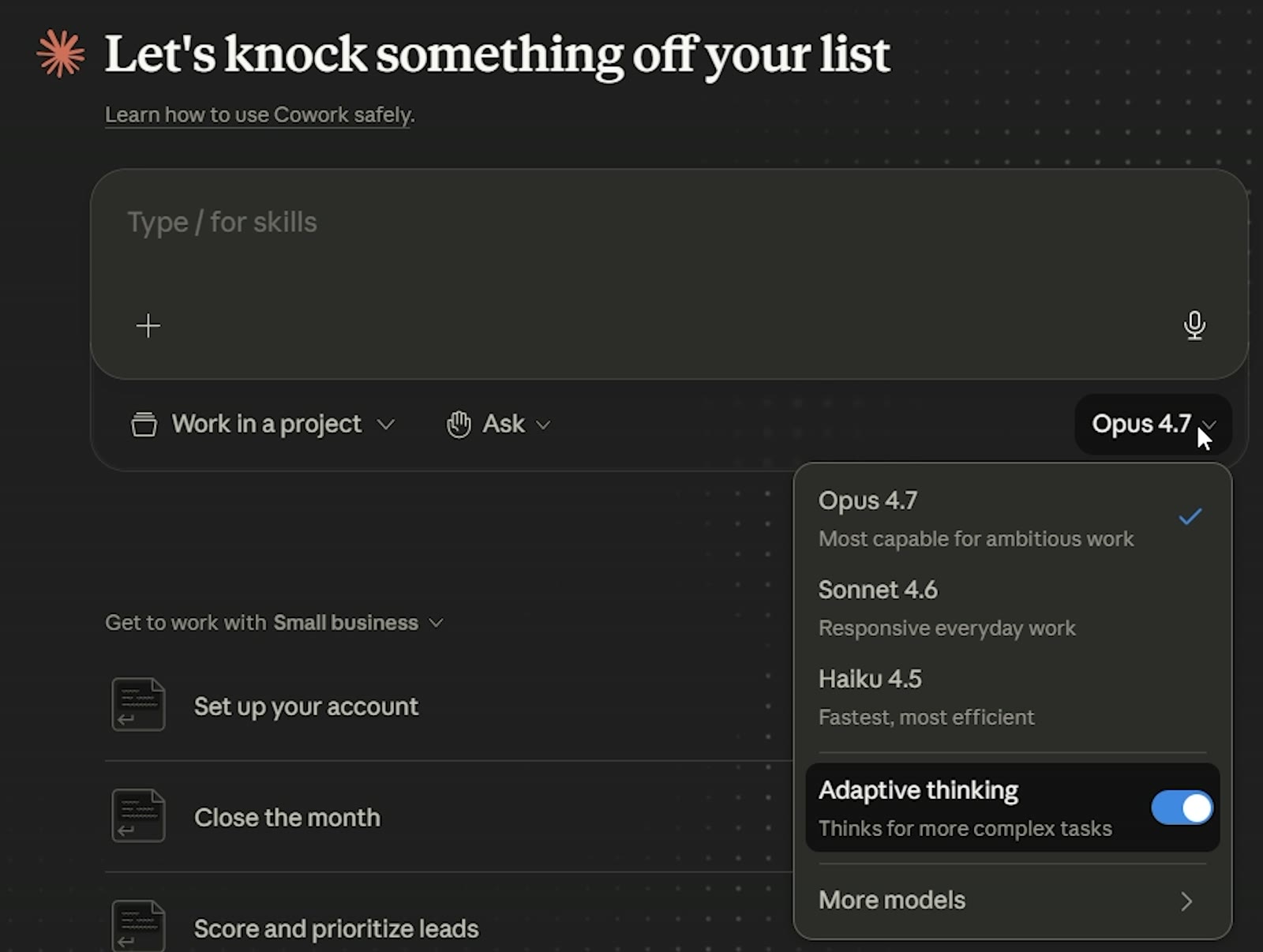
Then check the permission setting, the Ask menu beside it. It should default to ask before acting, and you should leave it there. There's an option to let it act without asking. Don't touch that until you know exactly what you're doing. You want to see every step before it moves on.
Run the onboarding
Type this into the message box and run it:
/smb-onboardIf you're unsure what a command does, hover it and the tooltip tells you.
It'll tell you it has no tools connected yet, and that this will take 15 to 20 minutes. Then it asks what your biggest day-to-day headaches are. This is what I typed:
following up on invoices, marketing to previous clients, cash flow visibility
It came straight back and told me to prioritise my accounting and customer tools.
Connect your tools
I said I use PayPal and HubSpot, and it started connecting them.
Click connect, and it opens a browser window to sign into that tool the way you normally would. On HubSpot, scroll down to connect app, which is easy to miss. Then a pop-up appears to take you back to the desktop app and you click open. PayPal is the same process.
It then builds a profile: what kind of business you run, how many employees, what tools you use, and whether you want to check in daily, weekly, or only when you ask.
Check the profile over before you say yes. Once you approve it, every skill knows your business.
The whole thing, download, install, onboarding and connecting PayPal and HubSpot, took me about 15 minutes.
Before you connect anything, know this: Anthropic does not train its models on your business data. That covers your PayPal numbers, your client emails and your sales pipeline. The Trust Center link in the Sources below has the detail.
Two more things worth knowing about the connections. Claude respects the permissions you've already set in each tool, so if an employee can't see something in Gmail or DocuSign today, they can't see it through Claude either. And at the time of recording you can't add connectors beyond the 12 that come with the install. That may change.
To check what any connector can reach, go to Customize, then Connectors, and click the one you want.
Run your first skill
Every skill is a forward slash. You don't write instructions, you pick the process and it runs. You can type it, or pick it from the list that opens when you type the slash. Start with this one:
/business-pulseIt pulls your PayPal balance, your invoices and your sales pipeline into one page.
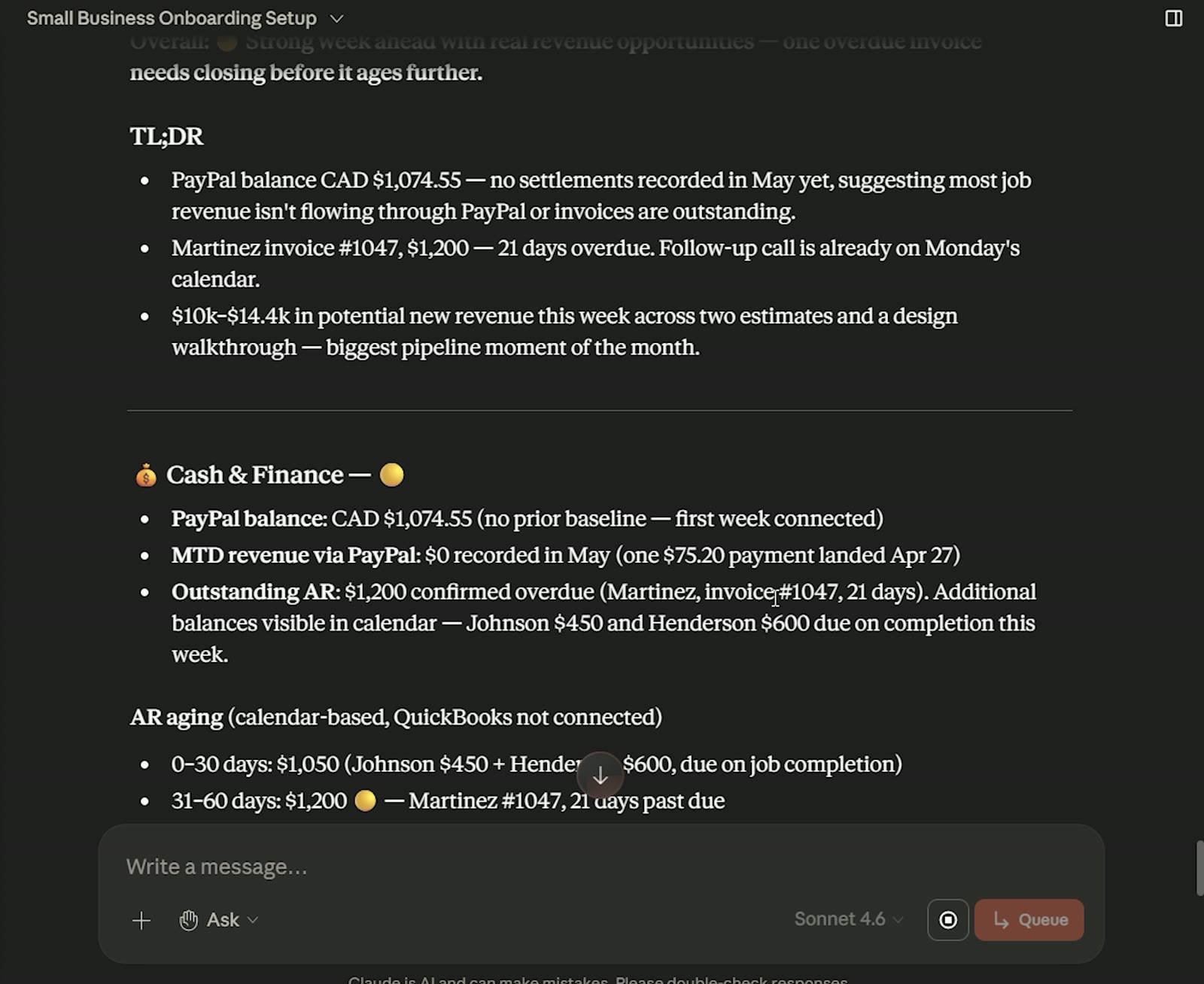
Mine came back with an overview, a cash and finance snapshot, priorities, revenue and sales, the pipeline, what I need to do this week and what to watch for. It also shows you where it pulled each piece from.
Schedule the Monday brief and pin it
You don't need a setting for this. I asked:
how do we schedule the /monday-brief
It scheduled it and showed me the task under Scheduled in the left sidebar. Mine runs at 7am every Monday.
It warned me that's peak time and my usage would be higher. You can just tell it to move to 3am instead.
Then ask for it as a live artifact. Instead of sitting in a chat window it becomes a dashboard, pinned to your sidebar, pulling fresh data every time you open it.
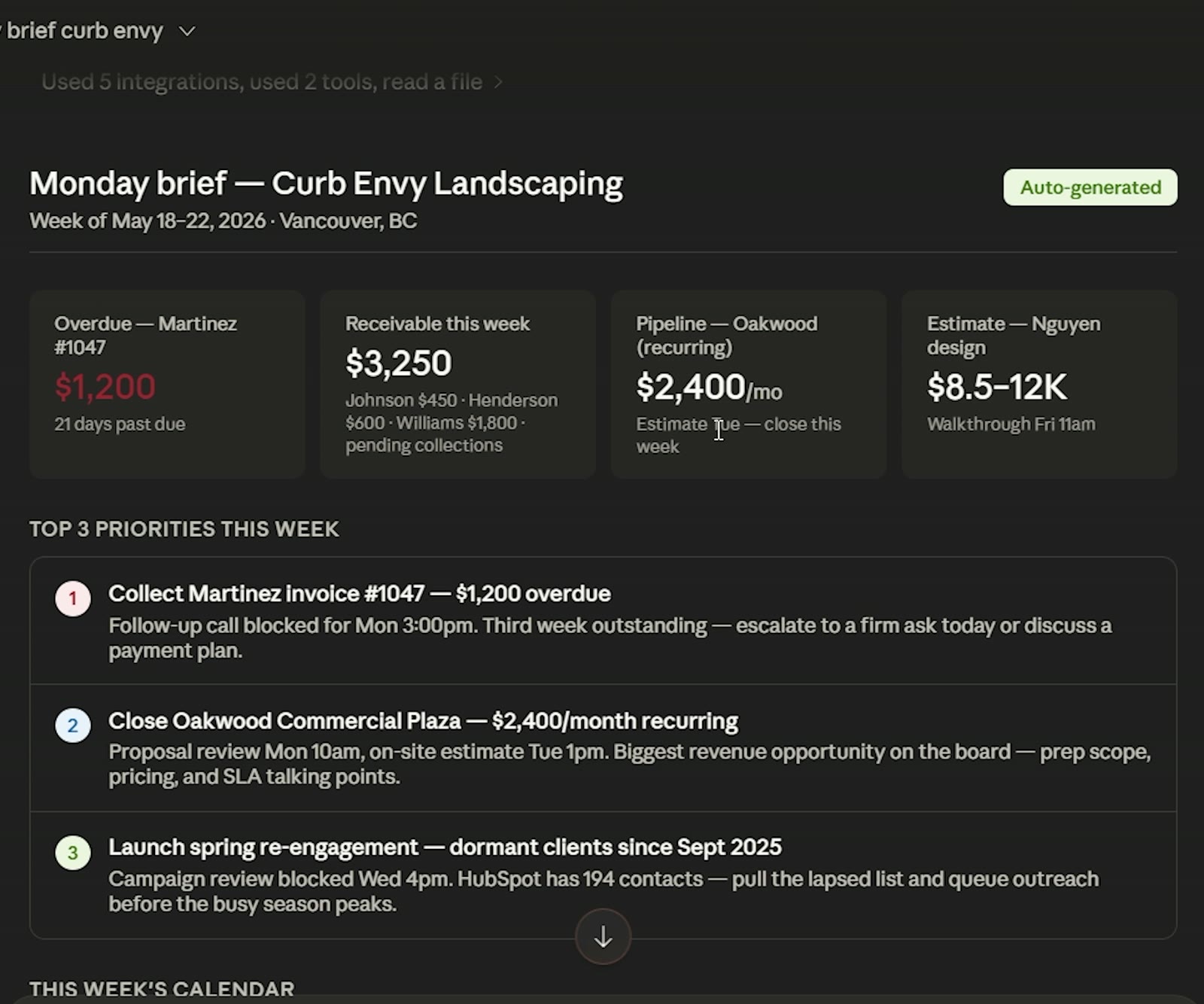
Anything a skill produces, you can also send somewhere else. I asked for what it had built to go to my Slack channel, and it did. Google Drive works the same way.
Six skills, and what each one gave back
Invoice Chase
/invoice-chaseIt showed me which invoice to follow up on, exactly how overdue it was, and whether this client is a repeat offender.
Then it picked a tone to match. Good payers get a gentle nudge. Repeat late payers get a firmer one. It reads your payment history to decide.
I typed "send it", and it wrote the email into my Gmail. It did not send it. That's mine to do.
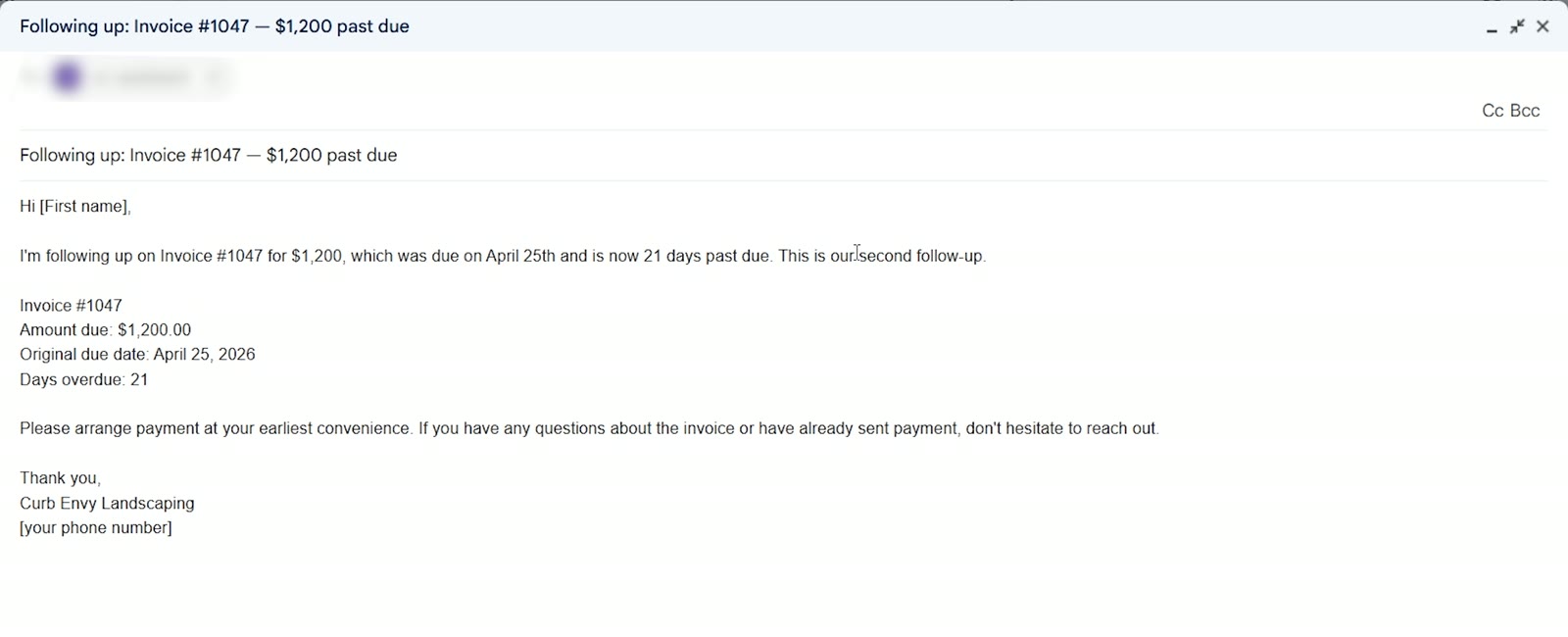
You'd never do that tone calculation by hand for every invoice. That's the point of it.
Call List
/call-listThis one went through HubSpot, my Gmail and my calendar and decided who I should be calling, and which potential customers were worth my time.
It gave me the list, talking points for each one, and suggested the times in my calendar to block off for the calls.
I asked it to add them, and it did. I never touched any of those tools. Claude touched all of them.
Customer Pulse
/customer-pulseThis checks across every connected tool for anything that signals a problem with a client relationship.
Mine found no negative customer signals that month. Then it gave me things to do that week to help the business, specific and actionable.
Cash Flow Snapshot
/cash-flow-snapshotThis is the one for knowing what's going on with your cash: a 30, 60 and 90-day forecast pulled from your real numbers.
It said it had enough information to build the snapshot from the connected accounts, and gave me a link to view it as a report I'm used to reading.
I sped this up in the video. It takes a little longer in real life, and it still saves you a lot of time.
Job Post Builder
/job-post-builderPosting a job has a lot of moving parts. What the job is, what you're offering, what to ask in the interview.
It asked me a couple of questions and the format I wanted.
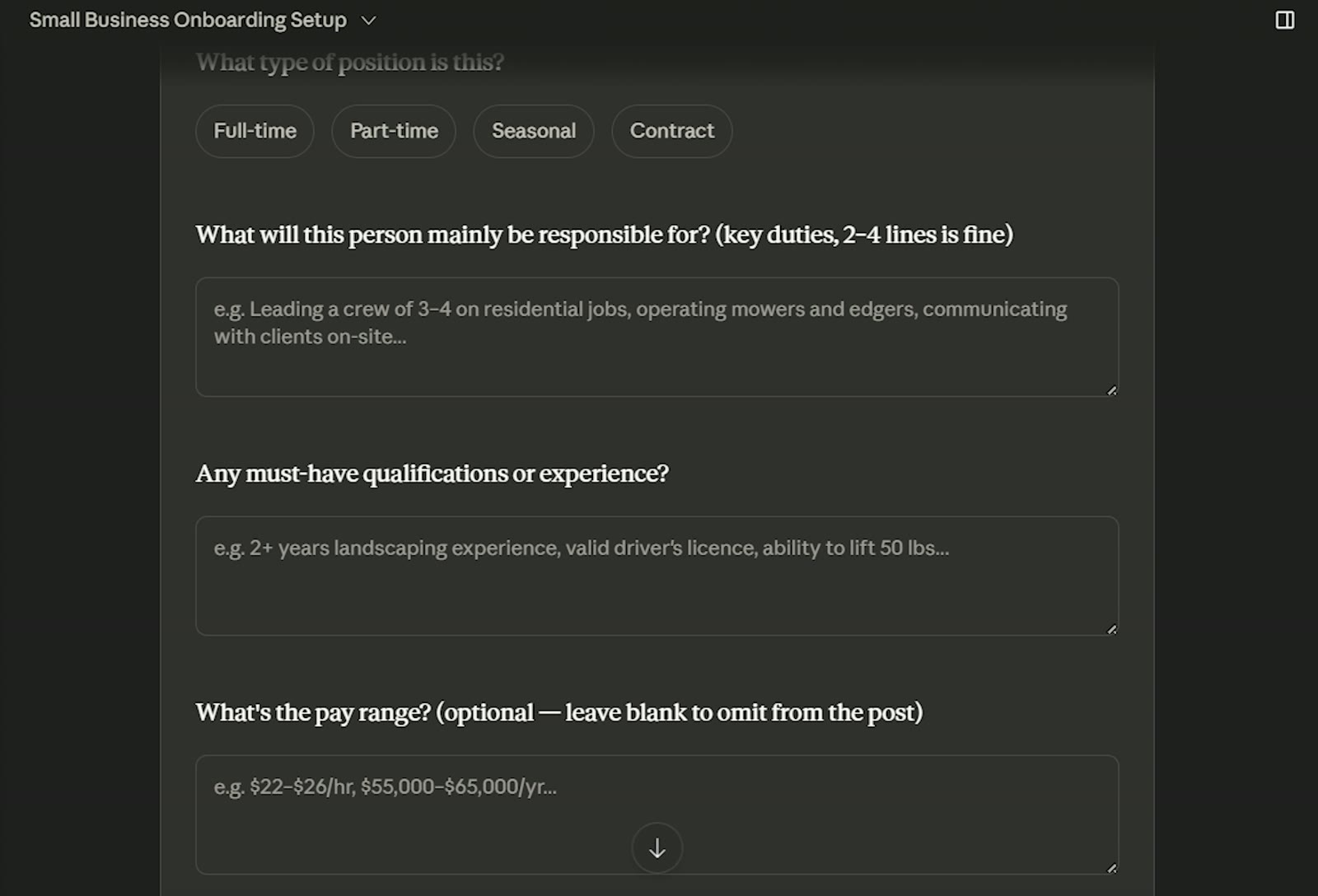
I filled in the role, and it went out and researched what those jobs look like in my area right now.
What came back was the job post, an interview guide, and the offer letter. From a couple of answers. You can save those to Google Drive, send them to Slack, or email them to people in your company.
Canva Creator
/canva-creatorThis one took minutes rather than seconds, and it does the most.
You tell it what you're selling and where you want it to show up. Instagram, Facebook, your email list. It decides what to post, which days, and how many posts to make.
Then it goes into Canva and makes the images themselves.
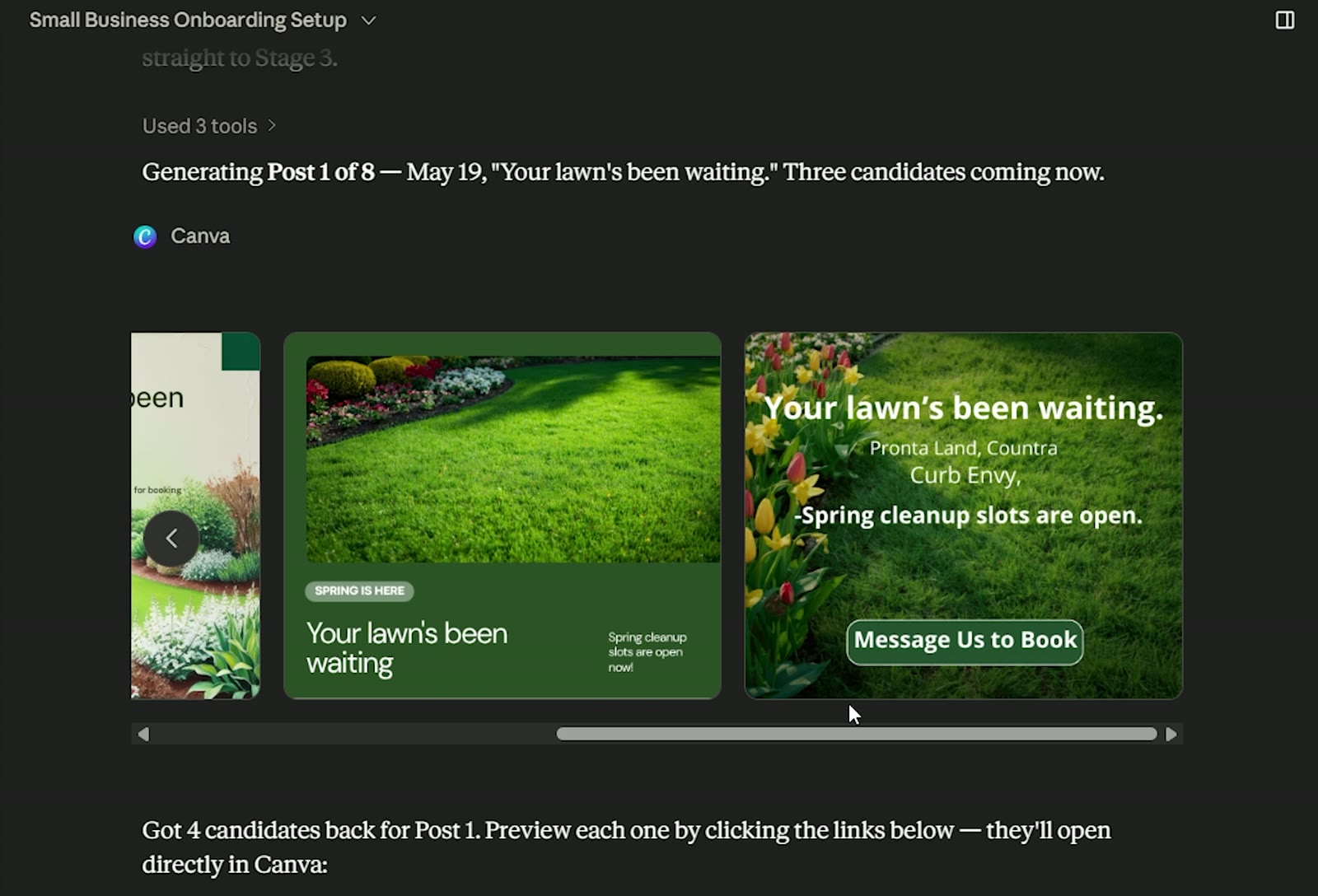
Eight designs with four options each, then captions written for every one, then the whole thing queued into a schedule, dated and ready, with nothing publishing until you say so.
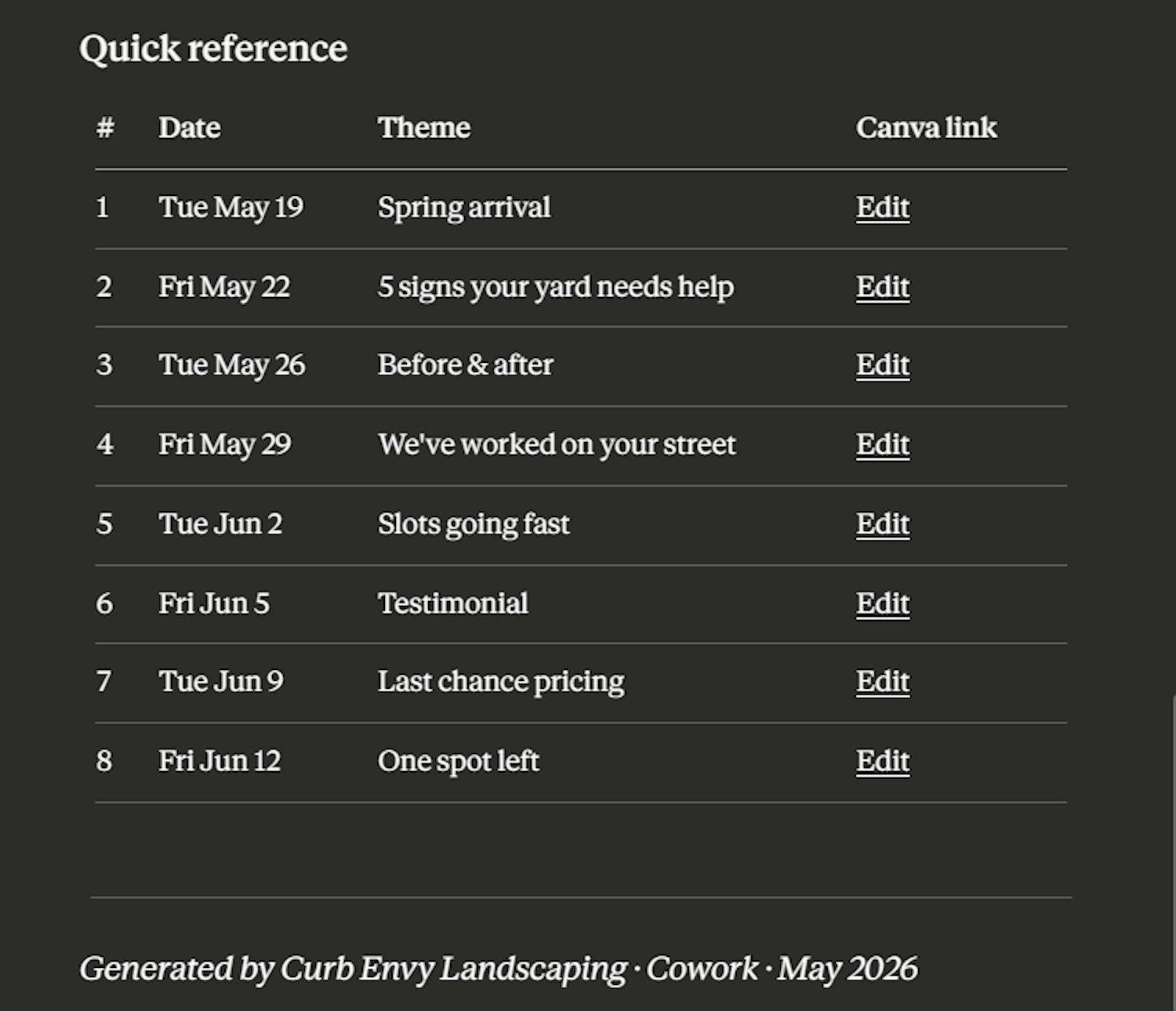
The only thing it needed from me that it couldn't work out itself was my call to action and booking link. If you'd already given it those, it would have pulled them in.
And Canva free works fine here. You don't need Pro. If you have more than one Canva account and it keeps sending you to the wrong one, which happened to me, disconnect one and it works.
Quick answers
Skimming? The quick answers
- What do I need? A Claude Pro plan ($20 a month) and the Claude desktop app. It doesn't work in the browser. See step 1
- How do I install it? Customize, then Plugins, search "small business", install. See step 2
- What do I get? 31 skills and 12 connectors, in one click. See step 2
- How long does setup take? About 15 minutes, including connecting two tools. See step 5
- Which model should I use? Sonnet. Opus burns through your usage limits. See step 3
- Can it send emails for me? No. It drafts them into Gmail and you send. See example 1
- Does Claude train on my business data? No. Anthropic doesn't train its models on it. See step 5
- Is my data safe if other people use my tools? Each tool's own permissions still apply, so nobody sees through Claude what they couldn't see already. See step 5
- How many tools can I connect? The 12 that come with it. You can't add more yet. See step 5
- How is this different from just asking Claude a question? Your tools are already connected and the steps are already worked out. You say what you want done, and it asks before it acts. See the intro
- Do I need Canva Pro? No, the free plan works. See example 6
Sources
About the author
Hey, I'm Traci
Digital Marketing Strategist
With over 25 years in this industry I help small business owners and creators turn their online presence into profit.
Keep going
The setup, the templates, and what I build next
Not more reading. The Claude setup guide you can follow tonight, and the templates I actually use. The page opens the moment you sign up.
Get the guideFree · you get it straight away